
Your MLS decides what you may publish. MLSImport gives you the switches to honour those rules, and it does not apply them for you, so the settings on each import task are what keep the site compliant.
Three things need checking: the two internet display flags, the attribution fields your board requires, and which fields you selected to import in the first place.
The two internet display flags
RESO gives sellers two opt outs, and both arrive on the listing as a true or false field.
- InternetEntireListingDisplayYN. False means the seller has asked that the listing not be published on the internet at all.
- InternetAddressDisplayYN. False means the listing may be published but the street address may not.
Both appear on the import task as settings you can turn on. Setting one to yes adds a filter so only listings the seller has allowed are requested from the MLS.
What “no” actually means
Setting either flag to no does not ask for the opted out listings. It removes the filter entirely, so the request comes back with everything the MLS is willing to send, including listings a seller asked to keep off the internet.
That asymmetry is the single most important thing on this page. A flag left at no is not a neutral default. It is the setting under which opted out listings are imported and published.
Setting both flags to no is a valid diagnostic when listings you expect are missing, because it proves whether the MLS is excluding them on those fields. Set them back the moment the test answers the question. A diagnostic left in place is a compliance exposure, not a harmless setting.
Every task, not only the first one
The flags are stored on each import task, so a task added months later starts from its own defaults rather than inheriting the first one’s. The task the setup wizard creates for you turns the entire listing flag on. A task you build by hand needs it set.
The check is quick. Open each import task and confirm both flags read the way your board requires, then do it again whenever a new task is added.
Turning a flag on later does not remove listings that were imported while it was off. The daily reconciliation pass removes properties whose listings have left the MLS, and an opted out listing is still in the MLS, so it is never flagged as gone. Those properties have to be removed with the delete tool on the Tools tab or by hand.
Attribution and disclaimer
Most boards require the listing office, and often the listing agent, to appear on every listing you display, along with a disclaimer naming the source of the data. Those are ordinary RESO fields, including AttributionContact and Disclaimer, and they are imported only if you select them on the Select Import Fields screen.
We already import and map them into this section.
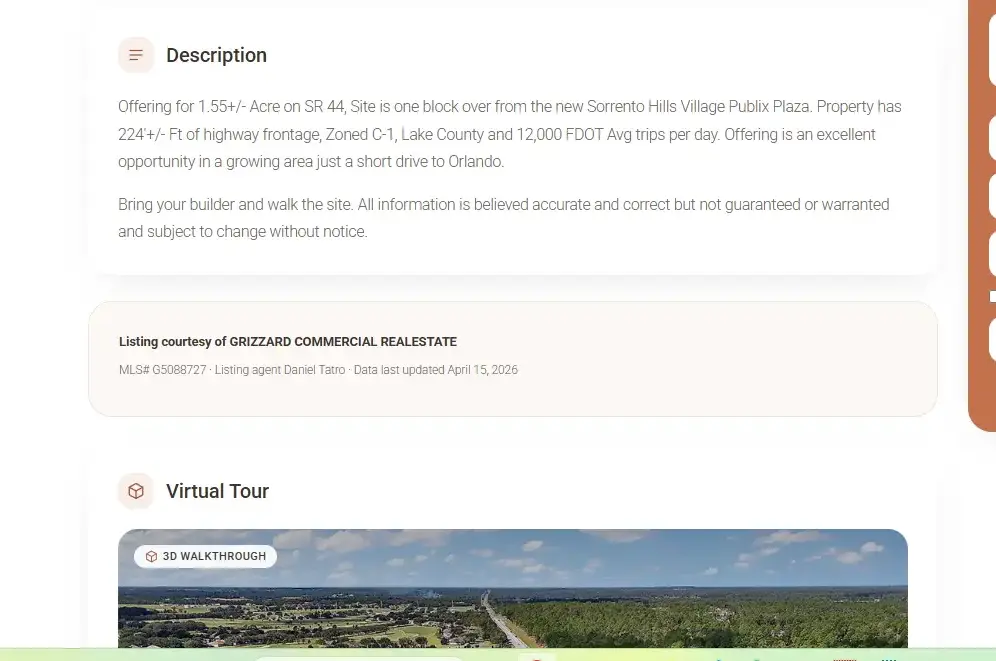
Where they appear on the page is your theme’s decision. Standalone mode places them through its own section, and the supported themes each have a courtesy of area their documentation describes.
You can add further information / custom text from Property Page – MLS Attribution section.
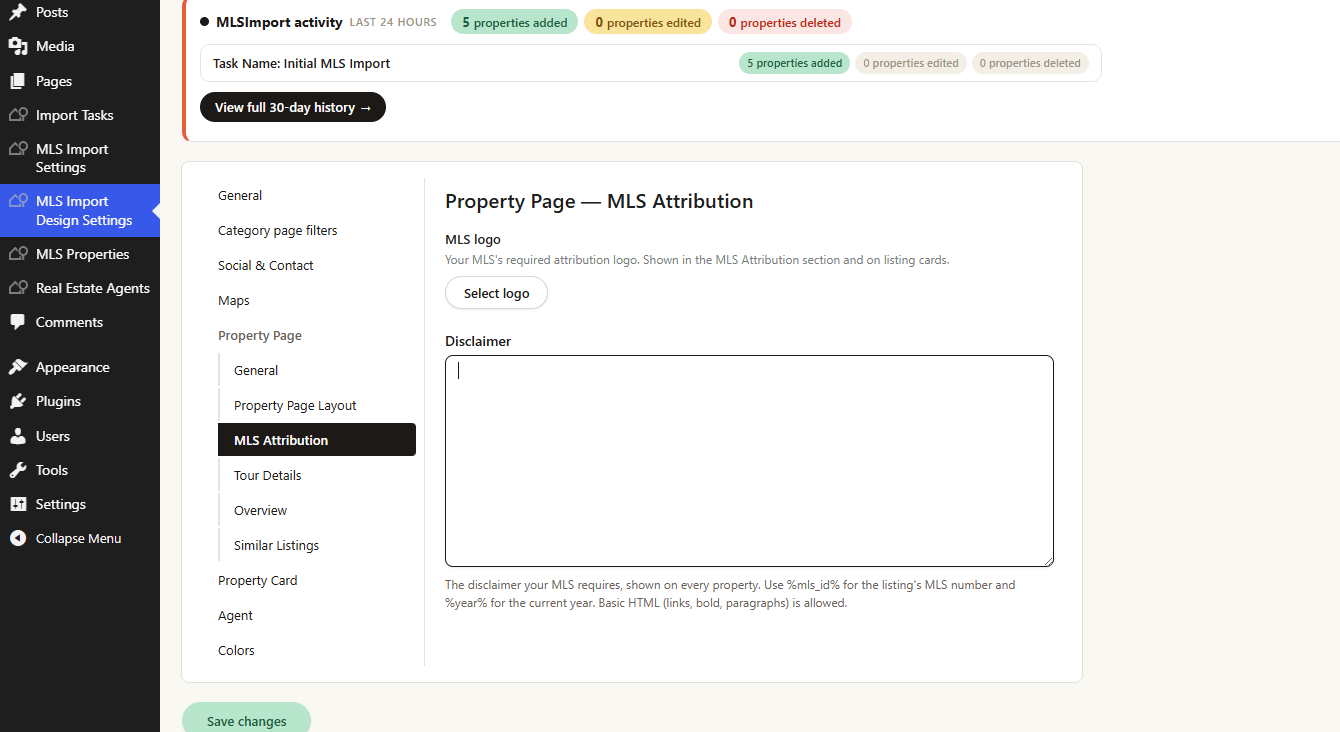
Data that must not be published
The RESO field list includes fields written for members only, private office remarks among them. The plugin will import any field you select, store it as post meta, and leave it to the theme whether it appears on the page.
The reliable control is not to select the field. A field you import and then hide in a template is still in your database, still readable by anything that queries post meta, including page builders, export tools and search plugins, and still one theme change away from being visible.
Two more RESO flags are worth importing if your board uses them: the automated valuation display flag and the consumer comment flag. They are not query filters, so honouring them is a matter of reading the field and deciding what your page shows.
Frequently asked questions
Does MLSImport know my board’s rules?
No. It gives you the fields and the filters. The rules come from your MLS or data licence, and the setup has to match them.
My MLS says the entire listing filter is not supported. What then?
Some servers do not accept that filter, and for those the plugin does not send it. Ask your board how opt outs are handled on their feed, because the answer decides whether you need a different filter or a manual process.
Can I show the address on a map but hide it in text?
Not through the flag. The address display flag controls whether you request those listings at all. A partial display is a template decision, and it has to satisfy your board rather than the plugin.
Who is responsible if something is displayed that should not be?
The site owner, under the data licence signed with the MLS. That is why the settings above are worth a scheduled review rather than a one time setup.
Related
- Listings you expect are not being imported
- Attribution fields and courtesy of text
- The Select Import fields screen
- Deleting properties safely
- Controlling which listings are imported
Send us your board’s display rules and we will tell you which task settings cover them.
