
You can run MLSImport by chatting. You type what you want in Claude or ChatGPT. The AI does the work on your website.
For example, you can type: “Add my MLS and import 50 homes in Tampa.” The AI adds the MLS, makes the import task, and starts the import.
Read on to turn it on, connect it, and see every tool you can ask for.
What is MCP?
MCP is the way an AI app talks to another program. Think of it as a phone line between Claude and your website.
MLSImport has its own MCP line. In the plugin it is called AI assistant access. When it is on, Claude or ChatGPT can use the same tools you use in wp-admin.
The AI can only do what an administrator can do. It never sees your MLS passwords.
What you need first
- WordPress 6.9 or newer. Older WordPress can’t run it.
- A live website with HTTPS. The address must start with
https://. Claude and ChatGPT call your site from the internet. A site on your own computer won’t work, and neither will a staging site behind a password. - An administrator login. Only an administrator can connect an AI app.
- For Claude: custom connectors work on claude.ai and in the Claude desktop and phone apps. On a Team or Enterprise plan, the owner of the team adds the connector first.
- For ChatGPT: you need a paid plan with Developer mode turned on. OpenAI decides which plans can use tools that change things. If ChatGPT refuses a tool, check your plan.
Step 1: Turn it on in WordPress
- In wp-admin, go to MLSImport > Settings > Tools.
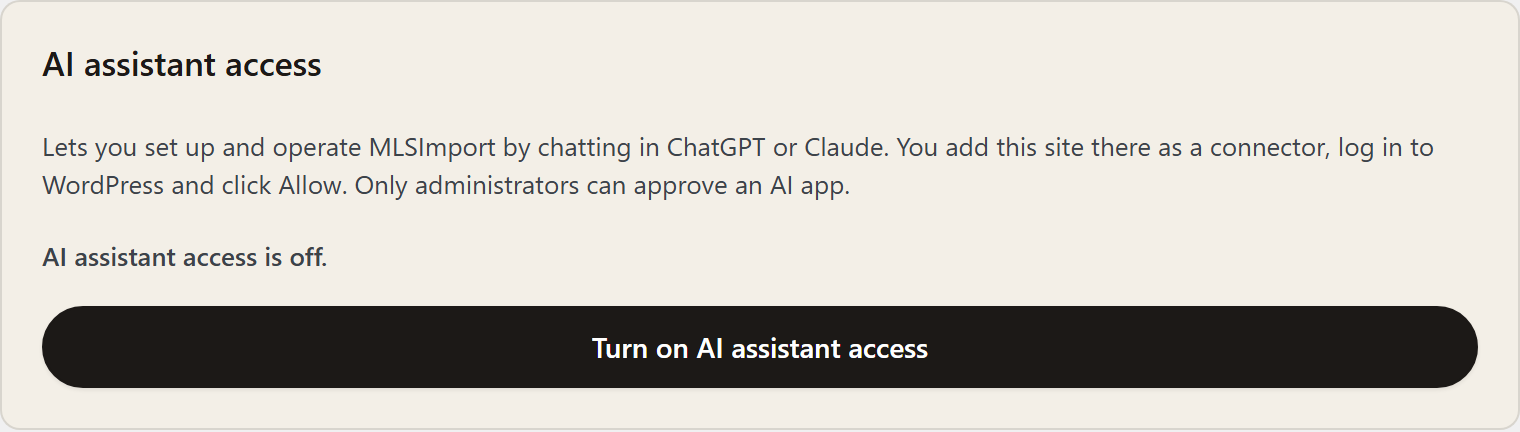
- Find the card called AI assistant access. It is off at the start.
- Click Turn on AI assistant access.
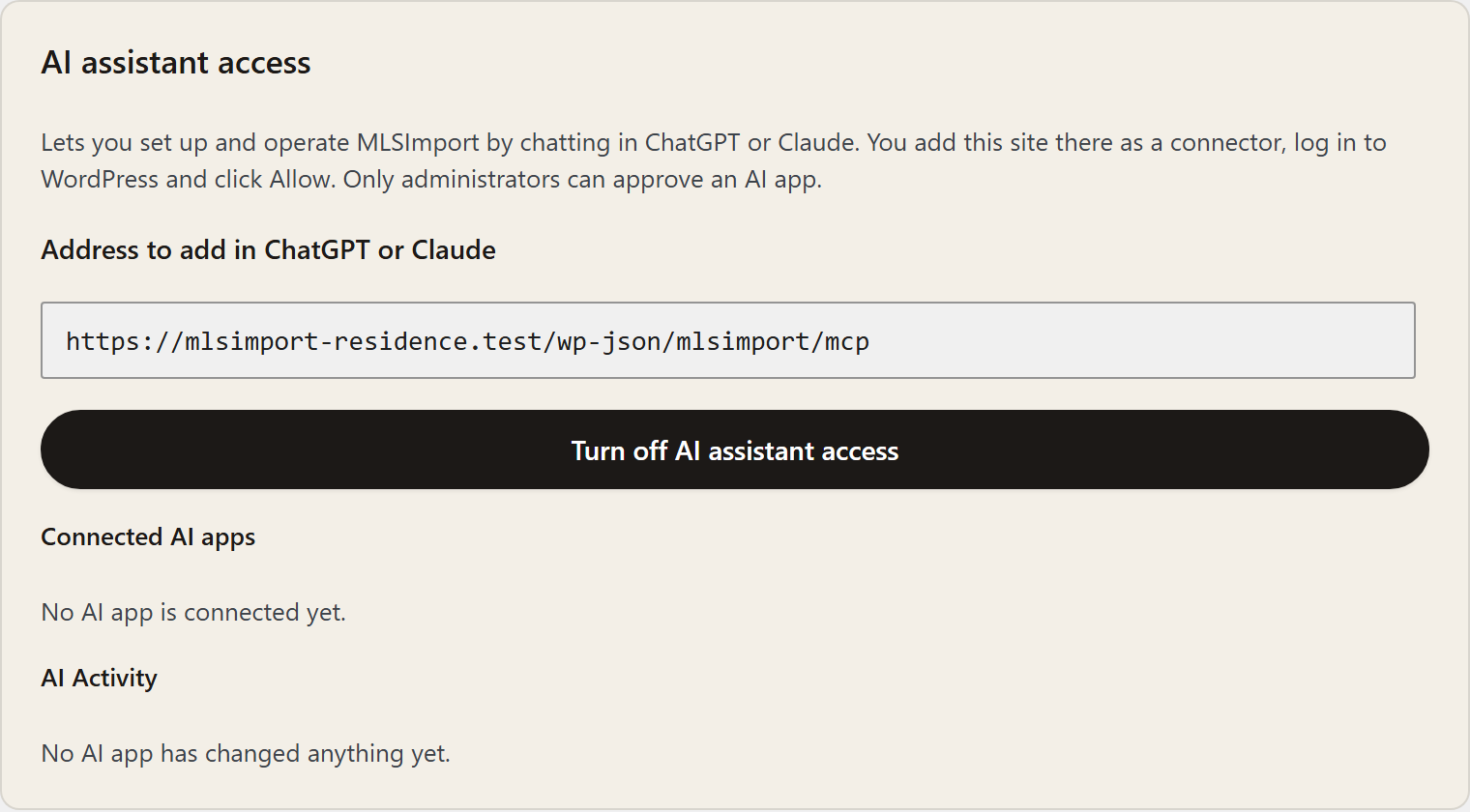
Now the card shows your MCP address. It looks like this:
https://your-site.com/wp-json/mlsimport/mcp
Click the box to select the address. Copy it. You will paste it in the next step.
If you see a yellow warning that the site does not use HTTPS, Claude and ChatGPT can’t connect yet. Ask your host for an SSL certificate first.
Step 2: Add your site to the AI app
In Claude
- Open Claude on the web or in the desktop app.
- Go to Settings > Connectors.
- Click Add, then Add custom connector.
- Type a name, like “My real estate site”.
- Paste the address from Step 1. Leave the advanced settings empty.
- Click Add.
In ChatGPT
- Open ChatGPT. Go to Settings > Apps > Advanced settings.
- Turn on Developer mode.
- Go back to Apps and choose to create a custom connector.
- Type a name and paste the address from Step 1.
- For the sign-in type, pick OAuth. You don’t type a key or a password here.
- Click Create.
Step 3: Log in and click Allow
Right after you add the connector, a page from your own website opens.
- Log in to WordPress as an administrator, if you are not logged in yet.
- Read the page. It names the app (Claude or ChatGPT) and where your answer goes (claude.ai or chatgpt.com).
- Click Allow.
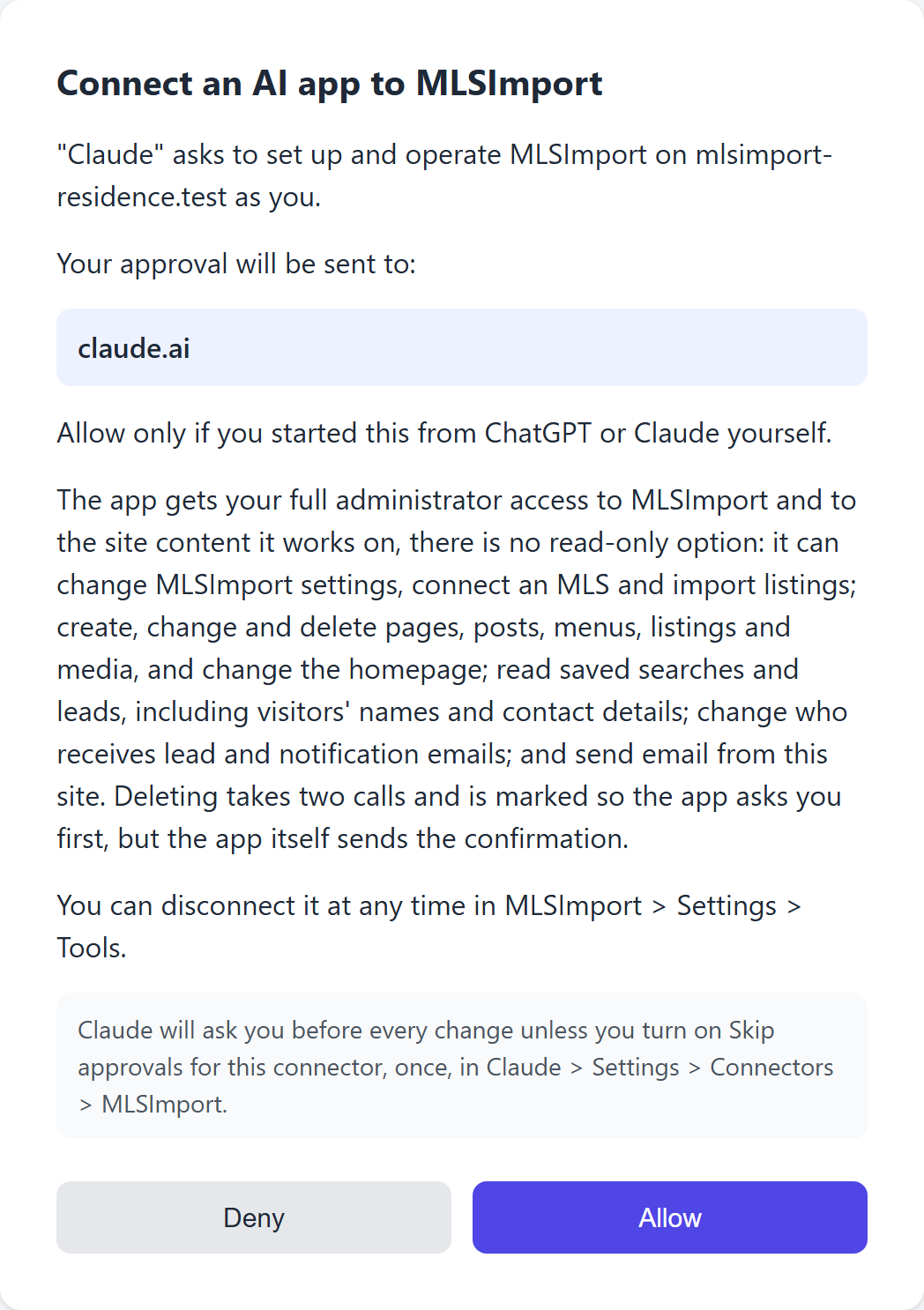
Read the page before you click. Allow gives the app your full administrator power over MLSImport and the site content it works on. There is no “read only” choice.
Only click Allow if you started this from Claude or ChatGPT just now. If you didn’t, click Deny.
Done. The app now shows under Connected AI apps on the Tools tab.
One more step in Claude
In Claude, a connector is not on in every chat by itself. In a new chat, click the + button. Choose Connectors. Switch your site on for that chat.
How to talk to it
Talk to it like you would talk to a helper. Use plain words. You don’t need the tool names.
- Start with a check. “Is my MLSImport set up? What is missing?” The AI reads your account, MLS connections, and tasks, then tells you the next step.
- Say what you want, not how. “Import active homes in Tampa under $500,000” is enough.
- Let it look things up. When a value must match your MLS (a city, a status, a property type), the AI reads the list from your MLS first and uses the MLS spelling. Some MLSs use codes (Centris does). The AI sees the code and the name.
- It asks when it must. If you have two MLSs, it asks which one. Before an import, it asks how many listings.
- If a step is missing, it says so. For example: “No MLS connection yet.” Tell it to do that step.
Below is every tool, sorted by topic. Each row shows what you can ask, and the options you can add. The name in small code is the tool the AI uses. You can name it if you like, but you don’t have to.
1. Your MLSImport account
| Ask for this | What happens | Options |
|---|---|---|
“Is my account connected?”account-status |
Tells you if the site is signed in to mlsimport.com, why not, and how many MLS connections your plan allows. | None |
“Connect my MLSImport account.”account-connect |
Signs the site in to your mlsimport.com account. Also signs you in again after a disconnect, or with a fixed password. | Username or email, password. It never shows the password back. It won’t switch to a different account. Do that in wp-admin. |
“Disconnect my account.”account-disconnect |
Same as the Disconnect button. The password is forgotten and the hourly sync stops until you sign in again. | Two steps. You confirm first (see “The two-step delete”). |
“I upgraded my plan. Check it again.”refresh-entitlements |
Reads your plan from mlsimport.com again: how many MLS connections and which MLSs. | None |
2. MLS connections
| Ask for this | What happens | Options |
|---|---|---|
“Find Stellar MLS.”list-available-mls |
Searches the list of supported MLSs by name. If more than one matches, the AI asks you which one. | Part of the name |
“What do I need to connect it?”mls-credential-fields |
Names the logins that MLS needs, so the AI knows what to ask you. | The MLS |
“Add Stellar MLS. Here are my logins.”add-mls-connection |
Tests your logins, saves the connection, reads the MLS fields, and fills the field list with good defaults for your theme. If it fails, the AI tells you why. | The MLS, your logins |
“Show my MLS connections.”list-mls-connections |
Lists each connection: name, status, last test, order, number of tasks and listings, and your plan limit. | None |
“Show me the Stellar connection.”get-mls-connection |
Shows one connection. Each login shows only as “set” or “not set”. Never the value. | The MLS |
“My MLS password changed. Here is the new one.”edit-mls-connection-credentials |
Tests the new logins. Saves them only if the test passes. If the test fails, nothing changes. | The MLS, all of its logins |
“Test my MLS connection.”test-mls-connection |
Tests the saved logins and saves the result. | The MLS |
“Put Stellar first.”reorder-mls-connections |
Sets which MLS wins. When two MLSs send the same home, the site shows the copy from the MLS that is higher in the list. | Every MLS, in order, first one wins |
“Remove the Stellar connection.”remove-mls-connection |
Deletes the logins, field list, and saved fields of that MLS. Its import tasks stop. Homes already imported stay on the site. | Two steps |
3. Fields (what gets imported)
Each MLS sends hundreds of fields: price, beds, school, roof type, and more. The field mapping says which ones you keep, what to call them, and where to store them.
| Ask for this | What happens | Options |
|---|---|---|
“Read the fields of my MLS again.”gather-metadata |
Reads all fields and filter values from the MLS again. New fields your theme knows get turned on. Your old choices stay. | The MLS |
“Which fields do I import?”get-field-mapping |
For each field: is it imported, is it for admins only, its label, and where it is stored. | Search by part of a name. “Only the imported ones.” |
“Stop importing the HOA fields.” “Rename LotSizeAcres to Lot size.”change-field-mapping |
Changes the field list. Applies to homes imported from now on. | Three kinds of change: Set one thing on one field: import on/off, admin-only on/off, label, post meta name, or taxonomy. Bulk: import or admin-only on/off for many fields at once. Move: put a field before or after another one. |
“Reset the fields of this MLS.”clear-field-data |
Deletes the saved field list. The next field read starts over from theme defaults. Your labels and choices are lost. Homes are not touched. | Two steps |
The AI reads the field list first, then changes it. If someone else changed the list in the meantime, the change is refused and the AI reads it again. So two people can’t overwrite each other.
4. Import tasks (which homes to import)
An import task is a set of rules. It says which homes to bring in from one MLS.
| Ask for this | What happens | Options |
|---|---|---|
“Which filters can I use?”list-filter-values |
Lists the filters your MLS has (city, county, status, type, ZIP code, and more) and the values each one accepts. | The MLS |
“Make a task for Tampa and Orlando, active homes only.”create-task |
Makes a new import task. | Name (required). Cities. Property types. Any other MLS filter, like status, subtype, or ZIP code. “Select all values” for a filter. Lowest and highest price. Hourly sync on or off. Which MLS (asked if you have more than one). Which agent gets the homes. Which WordPress user owns the homes. |
“Show my import tasks.”list-tasks |
Lists every task: its MLS, hourly sync on or off, health (OK, Sync overdue, Stuck, Import failed), and last sync. | None |
“Show me the Tampa task.”get-task |
Shows every setting and filter of one task. | The task |
“Add Clearwater to the Tampa task.” “Turn off sync.”update-task |
Changes only what you name. You can’t move a task to a different MLS. Make a new task for that. | Name. Title of each home (like {Address}, {City}).How many homes (0 = all). Hourly sync on or off. Lowest and highest price. Homes saved as published or draft. Agent (0 = none). Show the MLS listing agent instead (standalone sites). Owner user. Task status: published or draft. This also brings a task back from the trash. Filters. An empty value clears a filter. “Select all values” on or off. |
“Delete the Tampa task.”delete-task |
Moves the task to the trash. You can bring it back with update-task. The homes it imported stay, but that task no longer updates them. |
“Delete it for good” instead of trash. Two steps. |
5. Running imports
| Ask for this | What happens | Options |
|---|---|---|
“How many homes match the Tampa task?”count-task-listings |
Asks the MLS how many homes fit the task. | The task |
“Import 100 homes for the Tampa task.”run-import |
Starts the import in the background and answers “started” right away. If you don’t say how many, the AI asks. | The task, how many homes |
“Is the import done?”import-status |
While running: how many are done out of how many. When finished: found, saved, failed, and any error. | The task |
“Stop the import.”stop-import |
Asks the running import to stop. Homes already imported stay. | The task |
“The import looks stuck. Restart it.”revive-import |
Restarts an import that stopped moving. Does nothing if it is still working or already done. | The task |
“Run a test import.”run-test-import |
The setup wizard test. Imports up to 5 homes to prove it all works. It also sets the task to 5 homes. | The task |
The AI checks the import once when you ask. It does not keep checking over and over. Ask again in a few minutes.
6. Duplicate homes
| Ask for this | What happens | Options |
|---|---|---|
“Which homes are hidden as duplicates?”list-duplicates |
Lists homes that are hidden because another MLS sent the same home, and which copy shows instead. | None |
“Decide the duplicates again.”reevaluate-duplicates |
Picks the winning copy again for every shared home, using the MLS order you set now. | None |
7. History and logs
| Ask for this | What happens | Options |
|---|---|---|
“What was imported this week?”import-history |
Shows homes added, edited, or deleted by imports in the last 30 days. Newest first, 50 per page. | Added, edited, or deleted. One task. Search by MLS number, ListingKey, or post id. From date, to date. Page number. |
“What happened in the last 24 hours?”activity-summary |
Counts homes added, edited, and deleted, in total and per task. | Number of hours (24 if you don’t say) |
“Show me today’s sync log.”read-log |
Shows the last lines of a daily log. Logs only exist on days when “system logs” was on. | Which log: import (manual imports), cron (hourly sync), or delete (deleted homes). Day. How many lines (100 if you don’t say). |
8. Listing changes and the daily email
| Ask for this | What happens | Options |
|---|---|---|
“Show price drops from last week.”listing-changes |
Lists changes on homes. Newest first, 50 per page. | Kind of change: new listing, price change, status change, removed (under contract or off market), sold, back on market, agent change, content change. One task. Search by MLS number or ListingKey. From date, to date. Page. |
“Show the full history of this home.”listing-history |
Every change of one home, newest first. | The MLS and the ListingKey (the AI gets both from the list above) |
“What does my daily email send?”get-notification-settings |
Shows which changes are emailed, to which addresses, and the filter of each MLS. | None |
“Email me only price changes and sold homes.”update-notification-settings |
Changes which kinds of change are emailed and to whom. One setup for the whole site. | Kinds of change. Email addresses. |
“For Stellar, only email homes in Tampa over $300,000.”update-notification-filter |
For one MLS: turns the email on or off and sets which homes count. A new filter replaces the old one. | On or off. Filter: cities, neighborhoods, ZIP codes, property types, statuses, lowest and highest price. “Reset the filter” to go back to the filter from your import tasks. |
“Send the change email now.”send-digest-now |
Sends the email for one MLS right now with the changes since the last email. If there are no changes, nothing is sent. This sends a real email. | The MLS |
9. Plugin settings and tools
| Ask for this | What happens | Options |
|---|---|---|
“Export my plugin settings.”export-settings |
Gives you the field mapping and sync settings of every MLS as one document. It has no logins in it. Use it on another site. | None |
“Import these settings.”import-settings |
Puts back settings from an export. It replaces the field mapping and sync settings of each MLS named in the document. | The settings document. Two steps. |
“Are system logs on?”get-tool-switches |
Shows the Tools tab switches: system logs, property history, and the theme the plugin works with. | None |
“Turn on system logs.”set-tool-switches |
Changes only the switches you name. Keep system logs on only while you look for a problem. | System logs on/off. Property history on/off. Theme. Change it only if the plugin picked the wrong theme. Homes already imported keep the old theme’s format. |
“Clear the plugin cache.”clear-cache |
Clears saved sign-in and cached field lists. Nothing is lost. The plugin reads them again when needed. | None |
“Which cities do I have?”list-delete-terms |
Lists the home categories (city, county, status, type, and more). Name one and you get its terms and how many homes each has. | A category name |
“Delete every home in Miami.”delete-properties-by-term |
Deletes for good every imported home in the chosen terms. A big delete runs in rounds. The AI keeps going until it is done. | Category, terms. Two steps. |
10. Checking your site
| Ask for this | What happens | Options |
|---|---|---|
“How is my site set up?”site-environment |
Shows the theme mode (Standalone, WpResidence, Houzez, Real Homes, WpEstate), plugin, WordPress and PHP versions, memory and time limits, and how many import jobs are waiting. | None |
“Did I finish the setup wizard?”onboarding-status |
Shows if the wp-admin setup wizard is done and which step it is on. The AI can’t click through the wizard, but it can do the same steps with the tools above. | None |
11. Menus
| Ask for this | What happens | Options |
|---|---|---|
“Show my menus.”list-menus |
Lists each menu with its items in order, and where the theme shows it. | None |
“Make a menu called Main.”create-menu |
Makes an empty menu. It can also put it in a theme spot. A block theme (like Twenty Twenty-Five) uses a Navigation menu instead. | Name. Type: classic or navigation. Theme spots. |
“Rename the menu.” “Show it in the footer.”update-menu |
Renames a menu and sets where it shows. The list of spots you give is the full list. | Menu, type, new name, theme spots |
“Add the Homes page to the menu.”add-menu-item |
Adds one item: a page, a post, a category, or a custom link. | Menu, menu type, item type, which page or term, link, text, parent item, place (1 = first) |
“Change the text of that menu item.”update-menu-item |
Changes one item. Only what you name. | Text (empty = use the page name), link (custom links only), parent, place |
“Take Blog out of the menu.”remove-menu-item |
Removes one item. Items under it move up. The page itself stays. | The item |
“Delete the old menu.”delete-menu |
Deletes a menu and all its items. Pages stay. | Menu, type. Two steps. |
“Where can menus go?”list-menu-locations |
Lists the theme’s menu spots and which menu each one shows. | None |
“Show Main in the header.”assign-menu-location |
Puts a classic menu in one spot. The old menu there is replaced. The AI tells you which one, so you can put it back. | Menu, spot |
12. Pages and the homepage
| Ask for this | What happens | Options |
|---|---|---|
“List my pages.”list-pages |
Lists pages, 50 at a time: title, status, address, builder (Elementor or block editor), and which page is the homepage. | Search. Status: any, published, draft, private, pending, trash. Page number. |
“Publish the Austin page.” “Change its address to /austin/.”update-page |
Changes a page’s status, title, address, or parent page. The page content is not touched. | Status (draft, publish, private), title, slug, parent |
“What is my homepage?”get-reading-settings |
Shows if the homepage is a page or your latest posts, and which page lists the posts. | None |
“Make Austin Homes my homepage.”set-front-page |
Makes a published page the homepage right away. The AI tells you what the homepage was first, so you can switch back. | Homepage. Posts page (optional). |
“Delete the Test page.”delete-page |
Moves a page to the trash. The homepage and posts page can’t be deleted. | “For good” instead of trash. Two steps. |
13. Blog posts
| Ask for this | What happens | Options |
|---|---|---|
“List my blog posts.”list-posts |
Lists posts, newest first, 50 at a time. | Search. Status: any, published, draft, scheduled, pending, private, trash. Category. Page. |
“Write a post about spring buying tips. Save it as a draft.”create-post |
Makes a post. It is a draft unless you say otherwise. | Title (required), text, short summary, status (draft, publish, scheduled, private), date and time, featured image, categories, tags (a new tag is made for you) |
“Schedule that post for Monday 9 am.”update-post |
Changes only what you name. | Same options as above |
“List my blog categories.”list-categories |
Lists the post categories and how many posts each has. | None |
“Make a category called Market News.”create-category |
Makes a new post category. A name that exists is refused. | Name, slug, parent, description |
“Delete that post.”delete-post |
Moves a post to the trash. | “For good” instead of trash. Two steps. |
14. Images, logo, and custom CSS
| Ask for this | What happens | Options |
|---|---|---|
“Show my images.”list-media |
Lists images in the Media Library, newest first, 50 per page. | Search by title or file name. Page. |
“Upload this photo: https://…”upload-media |
Downloads an image from a web address into the Media Library. | Address, title, alt text |
“What is my logo and tagline?”get-site-identity |
Shows the logo, site title, tagline, and favicon. | None |
“Use this image as my logo.”update-site-identity |
Changes only what you name. The AI shows the old values, so you can undo. | Logo (0 removes it), site title, tagline, favicon (square, 512 by 512 or bigger; 0 removes it) |
“Show my custom CSS.”get-custom-css |
Shows the site’s Additional CSS, or the CSS of one page. | A page (leave out for the whole site) |
“Hide the title on the Austin page.”update-custom-css |
Writes CSS for the whole site or for one page. The AI shows the old CSS, so you can undo. | CSS. A page. “Add to it” instead of replace. Empty CSS removes it. |
15. Elementor pages
These tools show up only when Elementor is active on your site.
| Ask for this | What happens | Options |
|---|---|---|
“Read the Austin page.”get-elementor-page |
Reads every container, section, column, and widget on the page, in order. The AI does this first, so it knows what is where. | The page |
“What can I change on a button?”list-elementor-controls |
Lists the settings of an element, from the Content, Style, and Advanced tabs. A setting can have a phone and tablet value too. | Element (container, heading, button, image, a plugin widget, or “page”). Search. |
“Add a heading ‘Homes in Austin’ at the top.”add-elementor-element |
Adds one element: a container, section, column, an Elementor widget, or a plugin widget. | Element. Settings. Plugin widget options. Where: inside which parent, right after which element, or first or last. |
“Make that heading blue and bigger on phones.”update-elementor-element |
Changes only the settings you name. Empty removes a setting. | The element, the settings |
“Move the search form above the list.”move-elementor-element |
Moves an element with everything inside it. | The element. Where it goes. |
“Remove that spacer.”remove-elementor-element |
Removes an element with everything inside it. | The element |
“Make the Austin page full width, no title.”update-elementor-page |
Changes the page template and page settings. | Template: default, Elementor Full Width, Elementor Canvas (no header or footer), or Elementor theme. Hide title. Page settings like background and padding. |
“The page looks old. Rebuild the styles.”regenerate-elementor-css |
Rebuilds the Elementor CSS of one page, or clears it for all pages. | A page (leave out for all) |
16. Standalone sites: your listings
Sections 16 to 19 are only for sites in standalone mode. That is when MLSImport shows the listings itself, without a real estate theme.
| Ask for this | What happens | Options |
|---|---|---|
“Find 3-bed homes in Austin under $400,000.”search-listings |
Searches your homes with the same filters as your site search. 20 per page (up to 50). | Price, beds, baths, square feet, lot size, year built, HOA, days on market, garage, stories, subdivision, MLS number, list date, location, keywords, agent, city, state, ZIP, area, county, school district, label, status, property type, listing type, features. Sort order. Page. How many. |
“Show me this home.”get-listing |
Shows one home: its fields, text, categories, who gets its leads, its photos, and its link. | The home |
“Change the text of this home.” “Send its leads to Anna.”update-listing |
Changes the home like its edit screen does. Note: the next import writes over any field the MLS sends. | Fields, title, text, status (publish, draft, private), categories, who gets leads (an agent, or the MLS listing agent) |
“Make this home featured.”set-featured |
Marks a home as featured, or takes the mark off. | The home, on or off |
“Search shows the wrong price. Fix it.”reindex |
Rebuilds the search table for one home, or for all homes. All homes can take a long time. | A home (leave out for all) |
“Delete the third photo of this home.”delete-listing-image |
Deletes one photo for good. If it was the main photo, the next one takes its place. | The home, the photo. Two steps. |
“Delete this home.”delete-listing |
Deletes one home and its photos for good. If the MLS still has it and a task matches it, the next import brings it back. | The home. Two steps. |
17. Standalone sites: agents and saved searches
| Ask for this | What happens | Options |
|---|---|---|
“List my agents.”list-agents |
Lists agents with name, email, phones, and office. | None |
“Add an agent: Anna Lee, [email protected].”create-agent |
Adds an agent. | Name (required), bio, photo, status (publish or draft), fields like email, phone, job title, office |
“Change Anna’s phone number.”update-agent |
Changes only what you name. | Fields, name, bio, photo (0 removes it), status |
“Delete agent Anna.”delete-agent |
Deletes the agent for good. That agent’s homes go back to showing the MLS listing agent. Their leads go to the site’s lead email. | Two steps |
“Who saved a search?”list-saved-searches |
Lists visitors’ saved searches: name, email, what they search for, and the last email sent. | Active (default), pending (not confirmed yet), or unsubscribed |
“Stop the alerts for John.”deactivate-saved-search |
Stops the emails, like the visitor’s own unsubscribe link. The search is kept. | The saved search |
“Delete John’s saved search.”delete-saved-search |
Deletes it for good. Nothing of the visitor is kept. | Two steps |
“Send the saved search alerts now.”send-saved-search-alert |
For one search: emails new or changed homes since the last run. For all: runs the daily alert job now. This sends real email. | One saved search (leave out for all) |
18. Standalone sites: design settings and categories
| Ask for this | What happens | Options |
|---|---|---|
“Show my design settings.”get-design-settings |
Shows every design setting with its current value and the values it accepts. | None |
“Make the main color green.” “Show 4 cards per row.”update-design-settings |
Changes only the settings you name. A value that is not allowed goes back to the default. | Any design setting (see the list below) |
“What is on the Austin city page?”term-settings |
Shows the image and text of one category, like a city or a property type. | Category, term |
“Add this photo to the Austin city tile.”update-term-settings |
Changes the image and/or the text of one category. | Image (0 removes it), HTML text |
The design settings you can change:
- Listings: property address base, homes per page, cards per row, sort order, featured homes first, search results page.
- Search page: the search filters on the listings page.
- Contact: company name, phone, email, who gets contact forms, checkbox text, terms link text, the “What are you looking to do?” dropdown and its choices.
- Maps: MapBox key, start point, start zoom, pin clusters and their zoom.
- Single home page: details columns, photo and video section type, section order, similar homes (how many and per row), field order, tour times, MLS logo, extra disclaimer.
- Property card: card style, badge over the photo.
- Agent page: homes per page, per row, section order.
- Saved searches: let visitors save a search, most homes per email, email subject, intro line, disclaimer.
- Colors: main color.
19. Standalone sites: building pages with blocks
MLSImport has ready-made page blocks: a search form, a list of homes, a map, and more. The AI can build a whole page from them, in the block editor or in Elementor.
| Ask for this | What happens | Options |
|---|---|---|
“Which blocks can I use?”list-page-blocks |
Lists every page block and its options, plus the sections of the single home page. | None |
“Make a draft page called Homes in Austin, with a search form on top and a list of Austin condos sorted by price. Use Elementor.”create-page |
Builds a new page from blocks. You get a link to preview it and a link to edit it. | Title. Builder: block editor or Elementor. Blocks in order, each with options. Draft (default) or publish. |
“On the Austin page, add a list of homes in Austin.”add-page-blocks |
Adds blocks to the end of a page you already have. It uses the builder that page uses. | The page, the blocks |
“What blocks are on the Austin page?”page-blocks |
Lists the plugin blocks on a page in order, with their options and style values. | The page |
“Show that list four per row, with green prices and rounder cards.”update-page-block |
Changes one block. Only what you name. Works the same on Elementor and block editor pages. | The page. Which block (1 = first). Options. Styles: colors (like #2a7f62), sizes in pixels. Empty removes a style. |
“Take the list off the Austin page.”remove-page-block |
Removes one block. The rest of the page stays. | The page, which block |
The blocks:
| Block | What it shows | Main options |
|---|---|---|
| Search Form | A home search box | Title, results page, hide labels, fields, button text, color, size, icon, width |
| Search Results | The results of a search | How many, filter bar, fields per row, search fields |
| Property List | A list of homes you pick with filters | All home filters (price, beds, city, type, and more), sort, how many, filter bar |
| Property Slider | Homes in a slider | How many, sort, home ids, all home filters |
| List Properties by ID | The exact homes you name | Home ids, how many |
| Featured Property | One big home card | The home, design |
| Map with Listings | A map with home pins | All home filters |
| Half Map | Map on one side, list on the other | All home filters, sort, map area, map side, height |
| Display Categories | Tiles for cities, types, and more | Which terms, count, design, per row, sizes, colors, borders |
| Category Slider | Category tiles in a slider | Which terms, count, design, per row, sizes, colors |
| Team Directory | Your agents | Which agents, how many, featured only, sort, title, office, per row |
| Saved Properties | A visitor’s saved homes | How many |
| Contact Form | A lead form | Title, labels, fields, size, consent box, button |
| Blog Posts | Your latest posts | How many, category, order, columns per device, image, date, summary, read more, pages |
The look you set by chat also shows in the editor. On an Elementor page, find it in the widget’s Style tab. On a block editor page, find it in the block’s “Look” panel. You can change it by hand there too.
The two-step delete
Some tools delete or overwrite things. For these, the plugin always uses two steps:
- The first call changes nothing. It tells the AI exactly what would be deleted and gives it a one-time code.
- The AI tells you. Only after you say yes does it send the code back. Then the delete happens.
The code works one time only, for 10 minutes, for the same action, the same admin, and the same app. If you don’t say yes, nothing happens.
These tools use the two steps:
- Disconnect the MLSImport account
- Import a settings document
- Remove an MLS connection
- Clear the field data of an MLS
- Delete an import task
- Delete homes by category
- Delete a menu, a page, or a blog post
- Delete a home or one of its photos
- Delete an agent or a saved search
Removing one menu item and removing one page block don’t use a code. They are still marked as “deleting” tools, so Claude asks you first.
The plugin can’t see your chat, so the AI app sends the code back itself. That means the real “yes” check is in the AI app. Keep its approval setting on (see below).
Claude asks before every change
Claude asks you before it runs any tool that changes your site. You click to allow it.
If you don’t want to click each time, you can turn on Skip approvals once, in Claude > Settings > Connectors > MLSImport. Then Claude acts without asking. We suggest you keep the approvals on, at least for deletes.
What the AI can’t do
- Start the hourly sync or the cleanup run. They run on their own schedule. The AI can only start a manual import of one task.
- Switch your site to a different MLSImport account. Do that in wp-admin.
- See, disconnect, or add AI apps. Turn AI assistant access on or off. Only you can, in wp-admin.
- Read your MLS logins, your mlsimport.com password, or your sign-in token. No tool ever shows them.
- Run the setup wizard screens. It does the same work with its own tools.
See what the AI did
Go to MLSImport > Settings > Tools. The AI assistant access card has two lists.
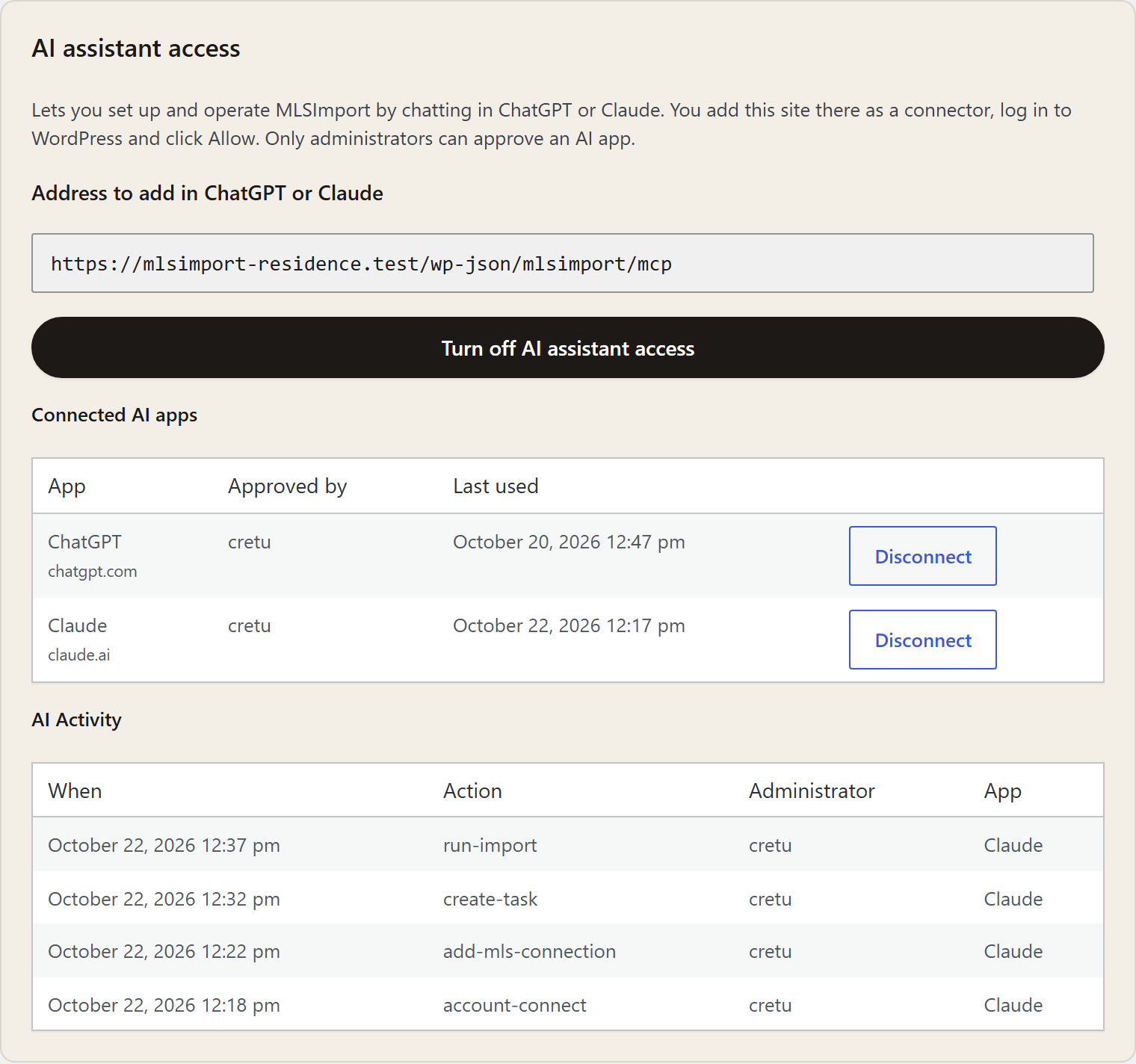
Connected AI apps shows each app you allowed: its name, its web address, who allowed it, and when it was last used.
AI Activity shows every change an AI app made: when, which tool, which admin, and which app. It shows the newest 20 of the last 100 changes. Reading things is not listed. The list saves which tool ran, not what was typed into it.
The homes an import adds or changes show up in Import History, like any import.
Disconnect an app
- One app: click Disconnect next to it. It stops working right away.
- After 90 days: an app that is not used for 90 days expires. It shows “Expired”. To use it again, allow it again.
- When the admin leaves: if the admin who allowed an app is deleted, or is no longer an admin, the app stops working. It shows “No longer valid”.
- All apps: click Turn off AI assistant access. Every app is removed. If you turn it on again, each app must be allowed again.
When something does not work
| You see | What to do |
|---|---|
| “AI assistant access needs WordPress 6.9 or newer.” | Update WordPress. |
| “Another plugin on this site loads a different version of the WordPress MCP Adapter.” | Another plugin uses a different copy of the same MCP code. AI access stays off until one of the two plugins is updated. Your imports and sync keep working. |
| “This site does not use HTTPS.” | Get an SSL certificate for your site. Then try again. |
| Claude or ChatGPT can’t add the connector. | Check that you pasted the exact address from the Tools tab. Check that your site is live on the internet. |
| “This AI app is not registered on this site.” or “The return address of this request is not accepted.” | Only Claude and ChatGPT can ask to connect. Remove the connector in the AI app and add it again. |
| “Only an administrator of this site can connect an AI app.” | Log in with an administrator account. |
| “An AI app can be connected only over HTTPS.” | Open your site with https:// and try again. |
| The AI says “No MLS connection yet” or “The fields of this MLS are not gathered yet.” | The AI names the step to do first. Ask it to do that step. |
| Claude doesn’t use your site in a chat. | Click + in the chat, choose Connectors, and switch your site on. |

For developers: Claude Code and Codex
Claude Code and Codex run in a terminal. They can’t open the Allow page. They connect with a WordPress Application Password instead.
- In wp-admin, go to Users > Profile > Application Passwords. Make a new one for an administrator.
- Turn that into a Basic sign-in header: the text
user:application-password, encoded as base64. - Claude Code:
claude mcp add --transport http mlsimport https://your-site.com/wp-json/mlsimport/mcp --header "Authorization: Basic <base64>" - Codex, in
~/.codex/config.toml:[mcp_servers.mlsimport]url = "https://your-site.com/wp-json/mlsimport/mcp"http_headers = { Authorization = "Basic <base64>" }
An application password works on your whole WordPress REST API, not just MLSImport. Keep it secret. Delete it when you are done. In AI Activity, changes made this way show the app as “(direct)”.
Add-on plugins can add their own tools with the mlsimport_mcp_abilities filter.
Stuck on a step? Open a support ticket from your account and we will help you connect.
