
On a new WordPress install, MLSImport starts with no MLS added. You sign in with your MLSImport account and the Connections tab shows a green “Connected to mlsimport.com” line, but under it the counter reads “0 of 1 MLS connections” and the list says:
No MLS connections yet. Use “+ Add MLS” above to connect your first MLS.
Your account is fine. “0 of 1” means your plan has room for 1 MLS and none is added on this site yet. Every new install starts like this, including a site you rebuilt from scratch, so the MLS has to be added again with the API credentials from your MLS.
Connect your MLSImport account
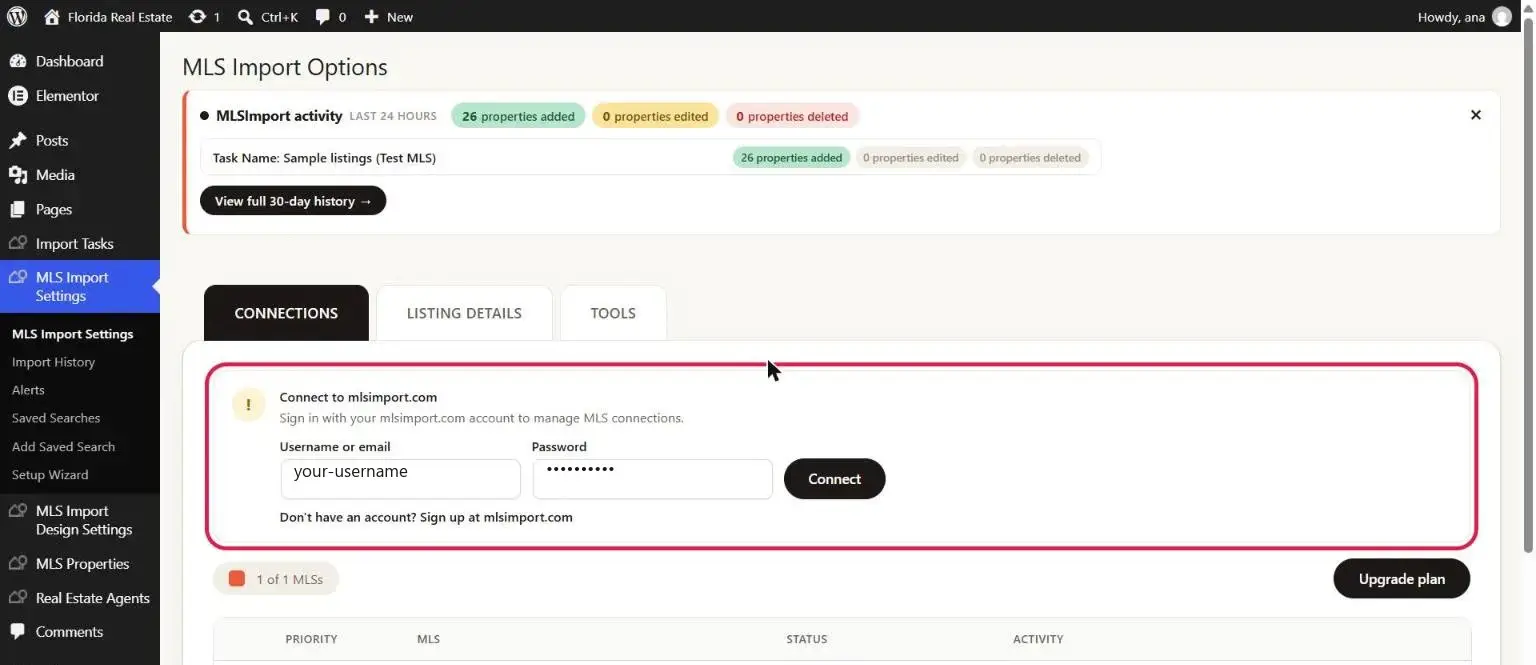
If the Connections tab shows a “Connect to mlsimport.com” box instead of the green line, sign in first. Enter your MLSImport username or email in Username or email, your password in Password, and click Connect. The box turns into the green “Connected to mlsimport.com” line.
Add the connection
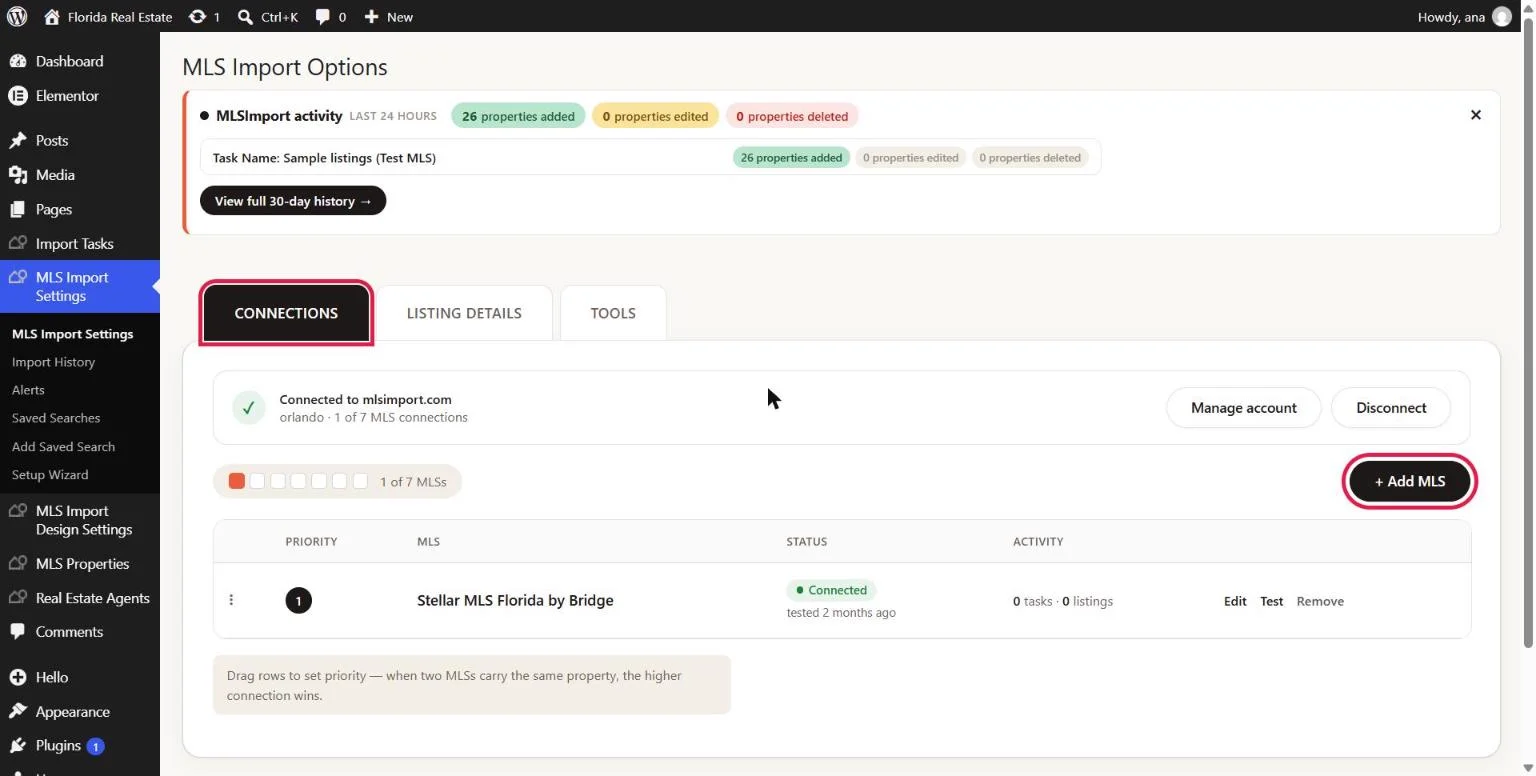
- Go to MLS Import Settings and open the Connections tab. Click + Add MLS.
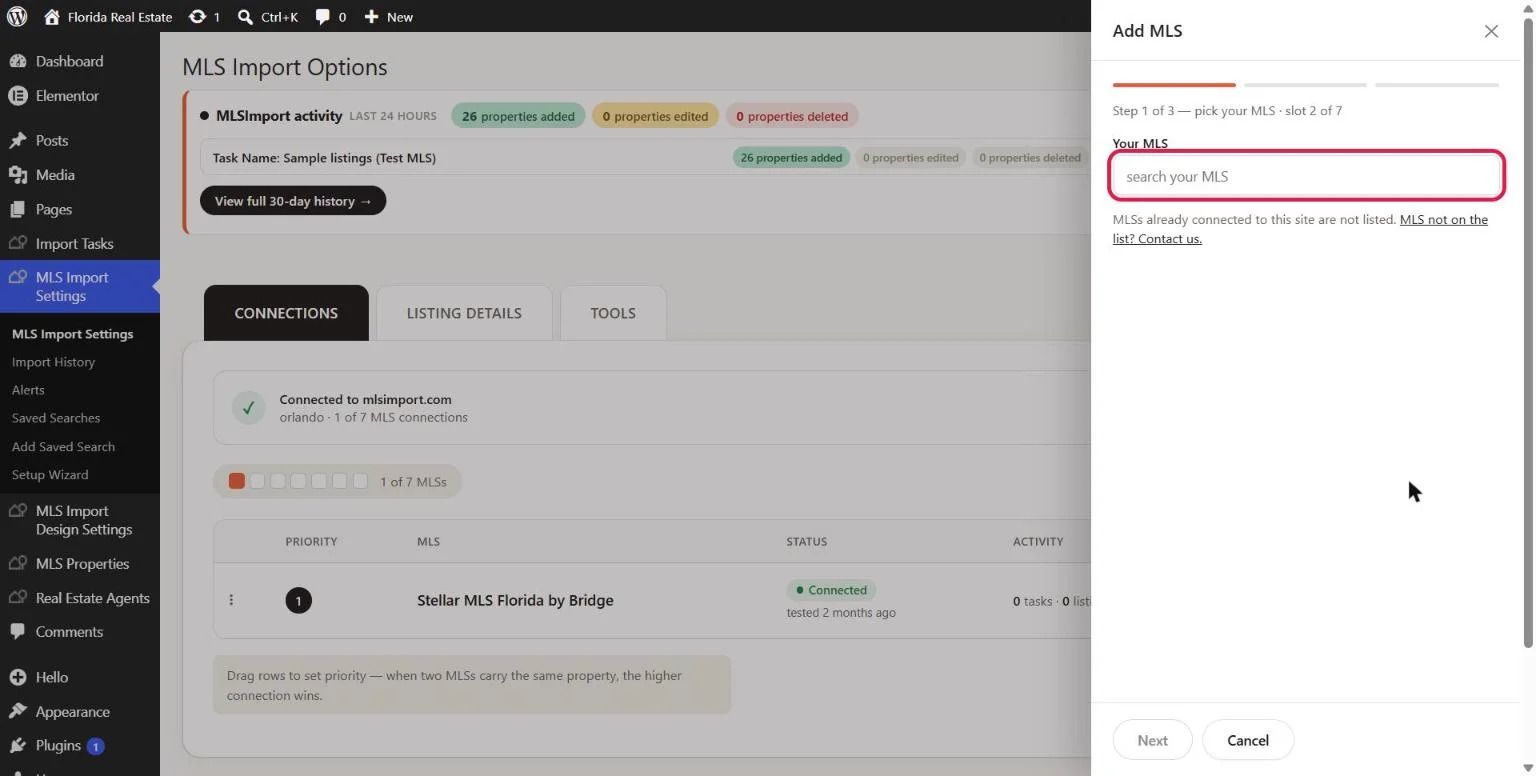
- The Add MLS panel opens. In Your MLS, start typing the name of your MLS.
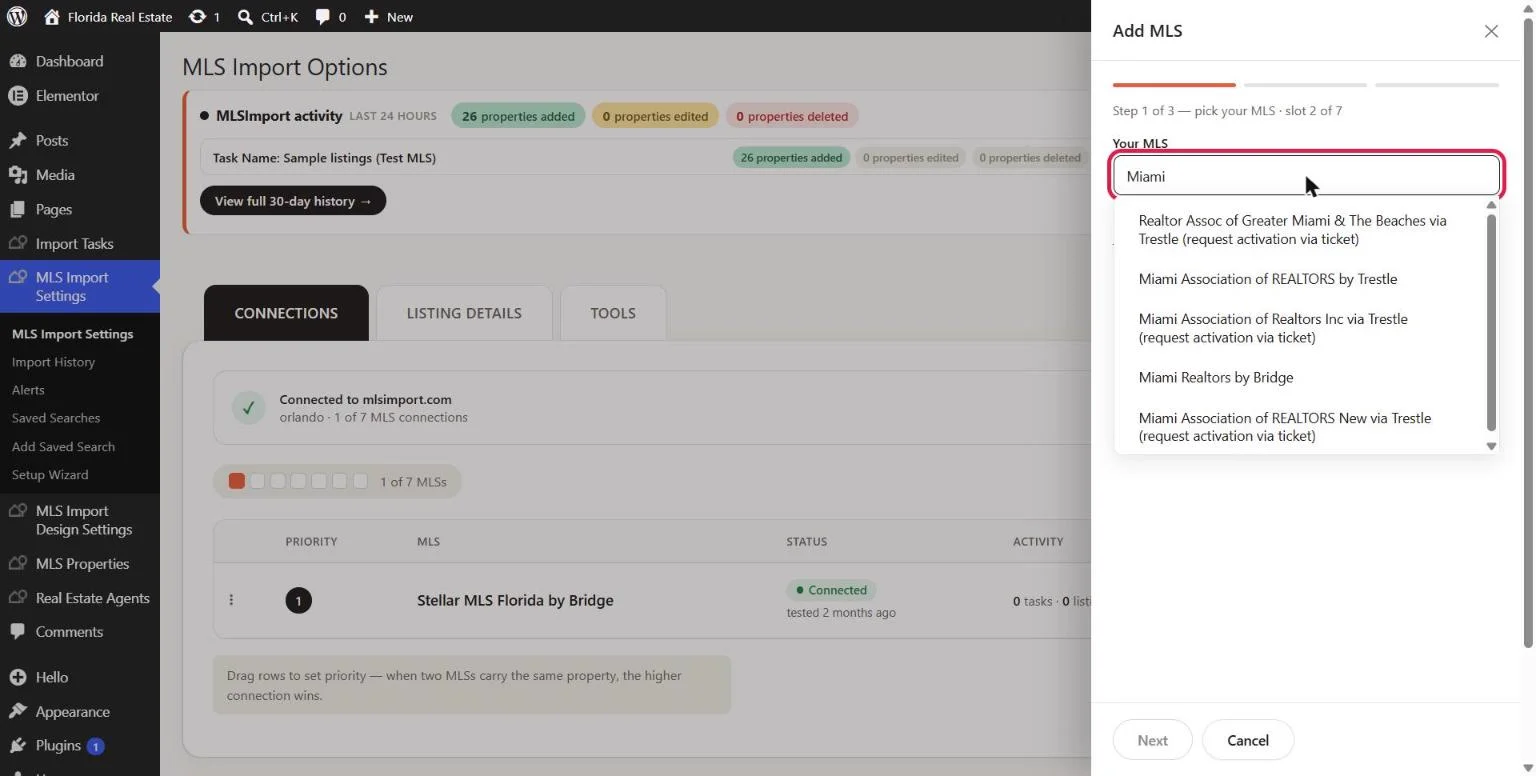
- Click your MLS in the list. If it is not there, use the “MLS not on the list? Contact us.” link under the field.
- Click Next and enter the credentials from your MLS. The fields change with the server your MLS uses. Bridge asks for one API Server token, Trestle asks for a Client ID and a Client Secret.
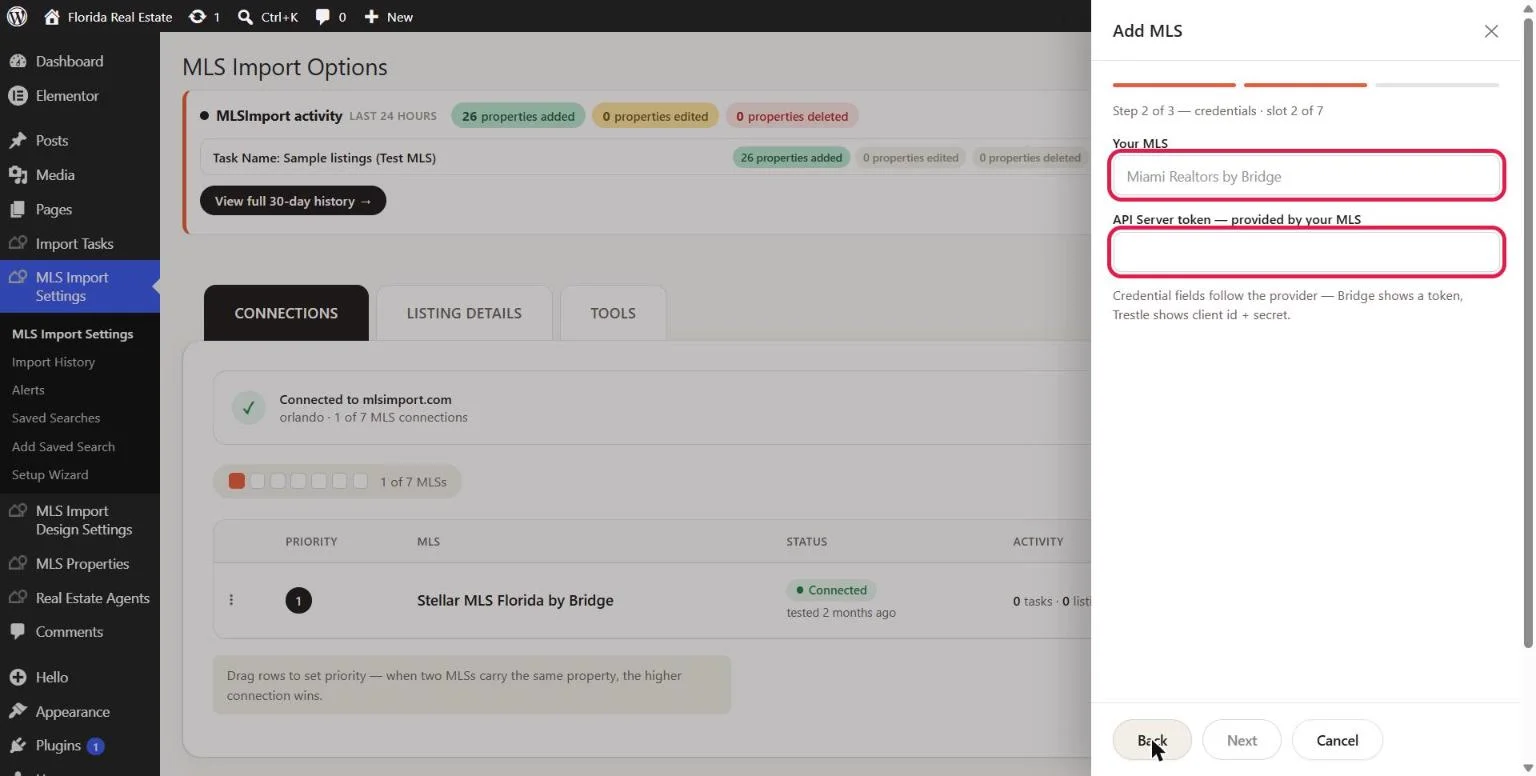
- Click Next, then Test & save connection. MLSImport tests the credentials first and saves the connection only if the test passes. Click Done.
See it done
The panel closes and your MLS appears as a row in the Connections list, with a green Connected status and the time it was tested. The counter now reads 1 of 1. From the row you can Edit the credentials, Test the connection again, or Remove it.
If the test fails, nothing is saved. Check that the credentials were copied without extra spaces and that your MLS has approved your API access.
Or let Claude or ChatGPT do it
If your site has the AI assistant turned on, you can add the MLS from a chat instead. Claude or ChatGPT connects your MLSImport account, asks which MLS you use and connects it when you paste your credentials. This video shows the whole chat:
To connect Claude or ChatGPT to your website first, follow this video:
The full setup is in How to Run MLSImport From Claude or ChatGPT (MCP).
What to do next
Choose the listing details you want on the Listing Details tab, then create an import task under Import Tasks → Add new Import Task.
