
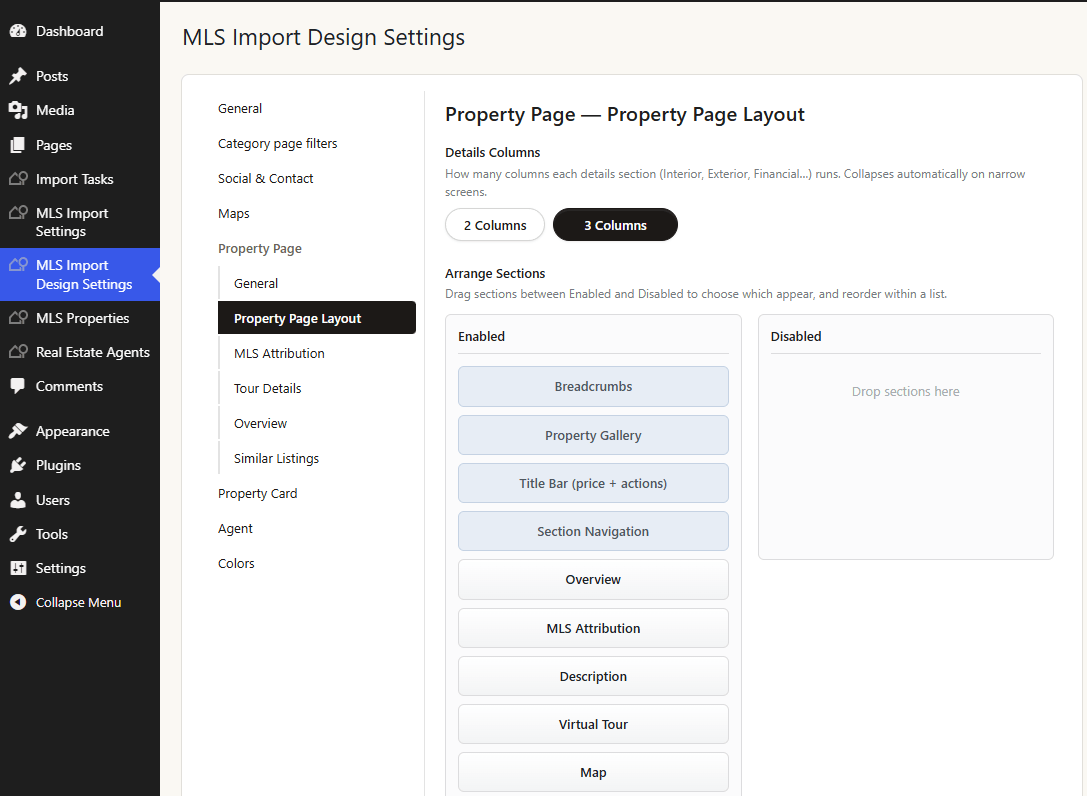
The single property page is built from sections, and you decide which appear and in what order. The control is Arrange Sections, under Property Page then Property Page Layout in MLS Import Design Settings.
Drag a section between the Enabled and Disabled lists to switch it on or off, and drag within the Enabled list to reorder. Save, then reload a property to see it.
The sections you can arrange
They are listed here in their default order, which is a sensible page as it ships.
- Breadcrumbs, the trail back to the archive.
- Property Gallery, the photos. Its look is chosen separately in Media Section Type.
- Title Bar (price + actions), the address, the price, and the save, share and print controls.
- Section Navigation, the jump links to the sections below.
- Overview, the tile strip of headline facts.
- Description, the public remarks from the MLS.
- Virtual Tour, the embedded tour when the feed carries one.
- Map, the listing on a map.
- Interior, Exterior, Structure, Utilities, Financial, Schools, Location, Listing Info and Other Details, the nine detail sections.
- Features, the amenity list.
- Mortgage Calculator.
- Agent Card, the contact block.
- Similar Listings.
- MLS Attribution, the logo and disclaimer.
- Mobile Agent Bar (sticky), the contact bar pinned to the bottom on phones.
Sections with nothing to show disappear
A section renders only when it has data. A listing with no school fields shows no Schools section, not an empty heading, so the page is never padded with blank blocks.
This is also why two properties from the same feed can have different sections. It is the data differing, not the settings.
A detail section shows a field only when that field is ticked on the Select Import fields tab and is not marked hidden from the public. If a whole section is missing from every property, the fields behind it are switched off at import rather than at layout.
The details grid
Details Columns, on the same sub screen, runs each detail section in 2 or 3 columns. It collapses on narrow screens on its own.
Overview tiles
The Overview strip has its own arranger under the Overview sub screen. The available tiles are Updated, Sub type, MLS number, Bedrooms, Bathrooms, Size, Year Built and Garage. Same drag and drop, same rule that a tile with no value is left out.
Tabs and accordions
The settings arranger builds one stacked page with a jump navigation. It does not offer a tabbed or accordion layout.
Those two exist as building blocks rather than settings. Sections as Tabs and Sections as Accordion are containers that hold any sections you name, so a tabbed property page is something you build in a template or with a page builder, using those containers to hold the detail sections. A section inside a container with nothing to show is dropped rather than left as a dead tab.
Disable a section rather than hiding it with CSS. A disabled section is never rendered, so its scripts and stylesheets never load, which a CSS rule cannot achieve.
If it does not work
- The order did not change. The settings were not saved, or a page cache is serving the old page. Save again, then clear the cache.
- A section you enabled does not appear. That listing has no data for it. Check a different property before assuming the setting failed.
- A new section appeared on its own. Sections added in a plugin update are enabled by default and placed next to their neighbour, so they reach existing sites rather than staying invisible. Drag it to Disabled if you do not want it.
- Your custom template ignores the arrangement. A template copied into your theme renders what it names. Sections you add or reorder in the settings only reach the bundled template.
Frequently asked questions
Can different properties have different layouts?
Not from the settings. The arrangement is site wide, and per property variation comes from the data, since sections without data are skipped. A genuinely different layout means a custom template.
Can I add my own section?
A developer can, with the section registry. Once registered it appears in the arranger and gains a shortcode and a block automatically.
Why is the gallery style not in this list?
Because the gallery is one slot in the layout and its look is a separate choice. Order it here, then pick Classic, Vertical, Slider v4, Multi Image or one of the two Masonry galleries in Media Section Type.
Can I move the agent card into a sidebar?
Not with the arranger, which orders one column. A sidebar layout means a custom template, where the agent card is placed with its own shortcode or block.
Related
- Property page building blocks
- The Design Settings page
- The Select Import fields screen
- Editing design settings in the Customizer
Send us a property page and the section you cannot get to appear and we will check the data behind it.
