
Polygon search lets buyers draw their own search area on your map. They click Draw area, click around the streets or neighborhood they want, and see only the listings inside that shape. The list and the map update together.
Try it on the demo: standalone.mlsimport.com/map-search.
Where the Draw area button is
The Draw area button sits in the top right corner of the map on the Half Map block. Add a Half Map to your search page from the block editor, from Elementor, or with the [mlsimport_half_map] shortcode, and the button is there.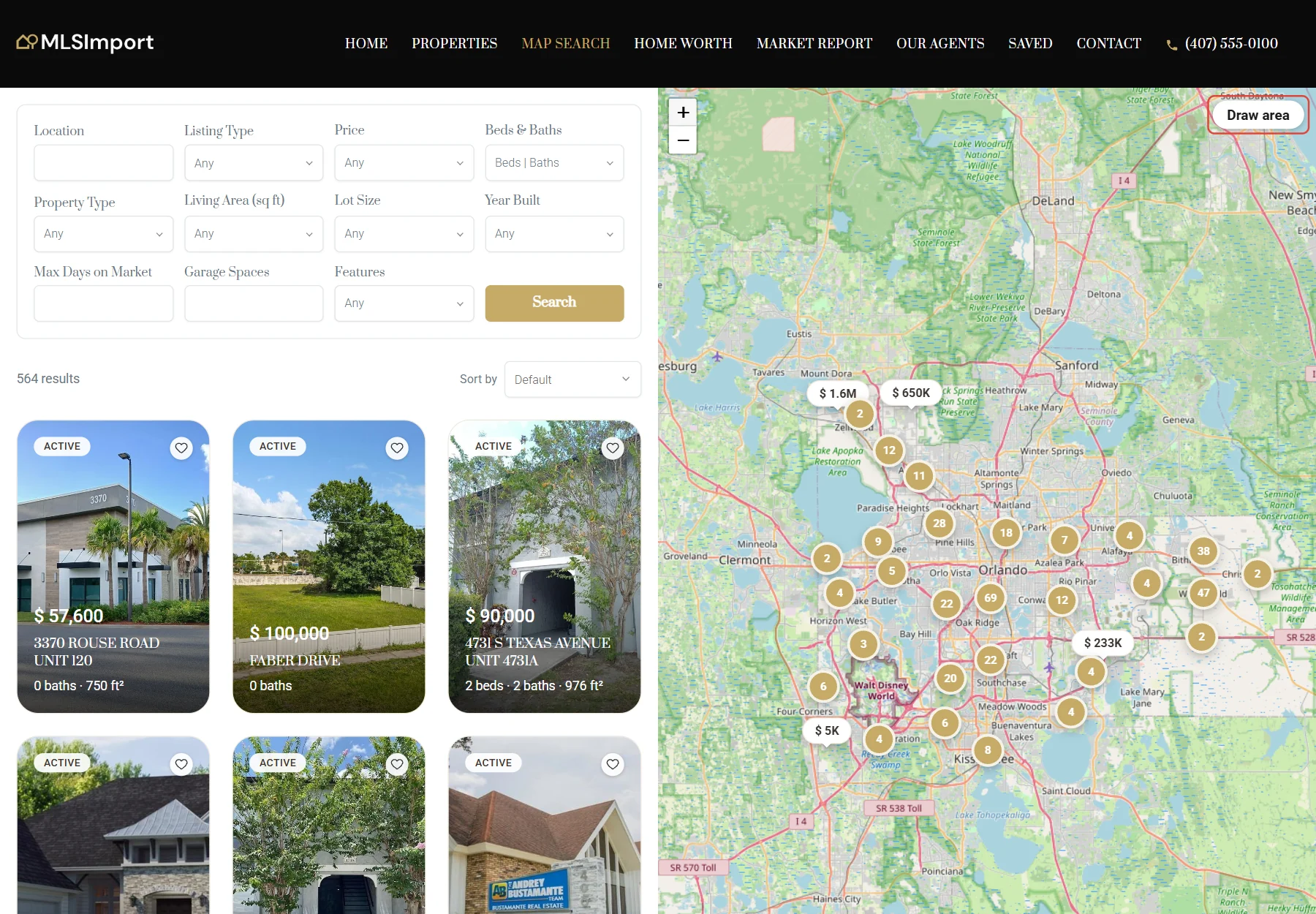
Draw the area
Click Draw area, then click on the map around the streets or neighborhood you want. Each click adds a point. A shape needs at least three points.
The first point is larger, so it is easy to find again. Click it to close the shape. While you draw, the button reads Click start point to finish. Click the button again to remove the points and start over.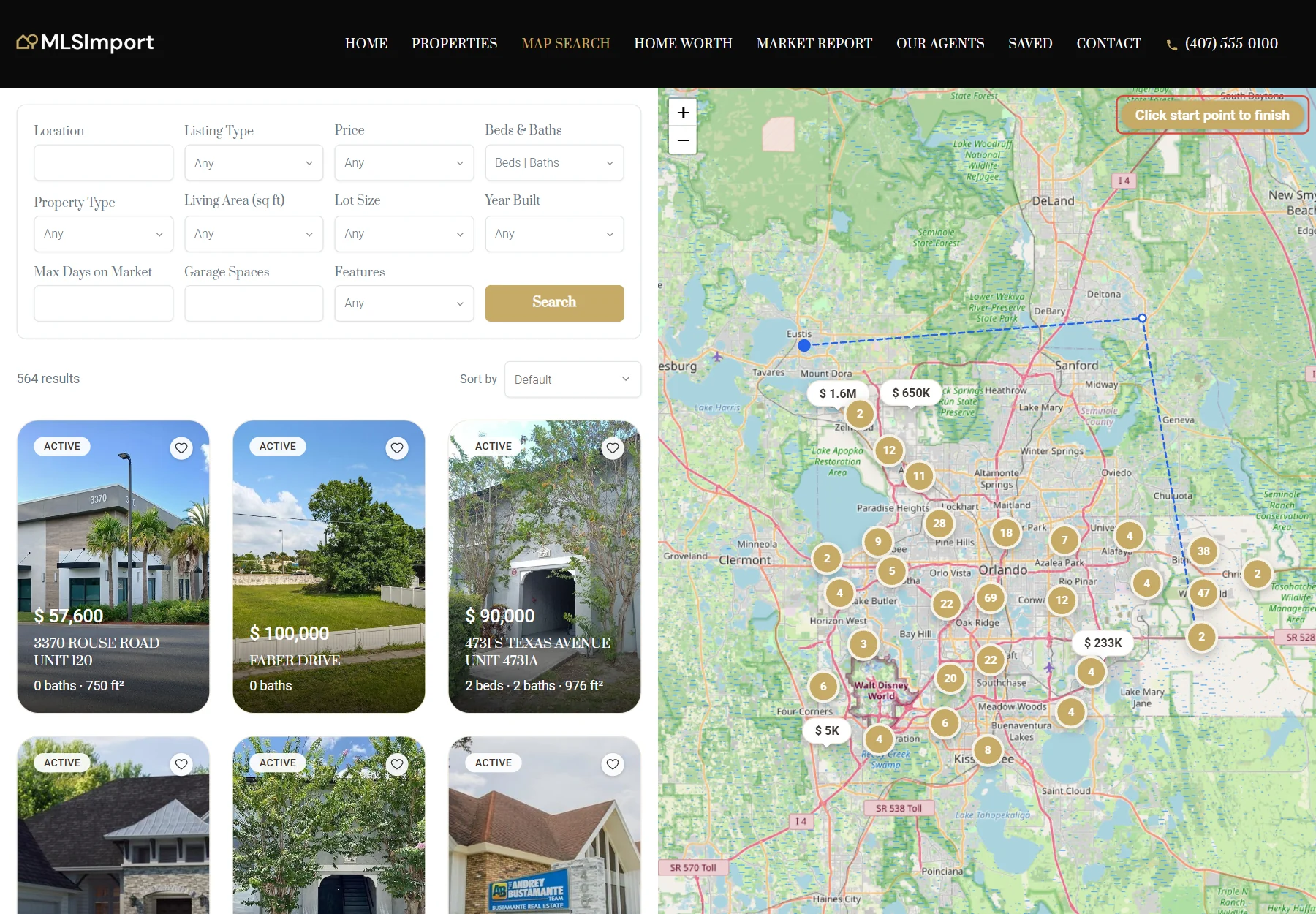
See the listings inside the shape
The search runs as soon as the shape closes. The list and the map show only the listings inside it. On the demo, 564 results become 251.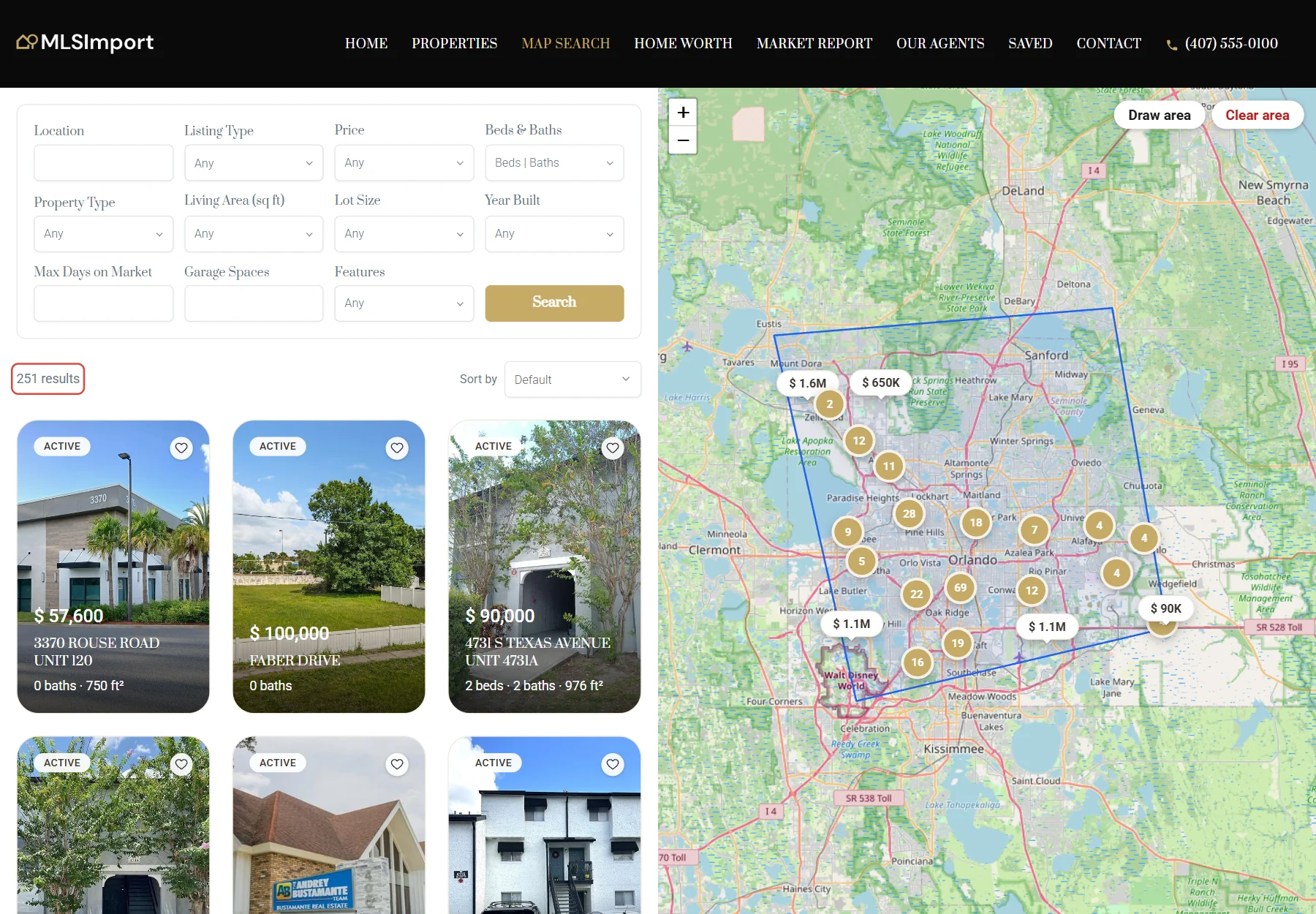
Filter inside the shape
The search fields work inside the shape. Pick a price range, a bedroom count or any other field, then press Search. On the demo, 3+ beds brings the 251 results down to 62.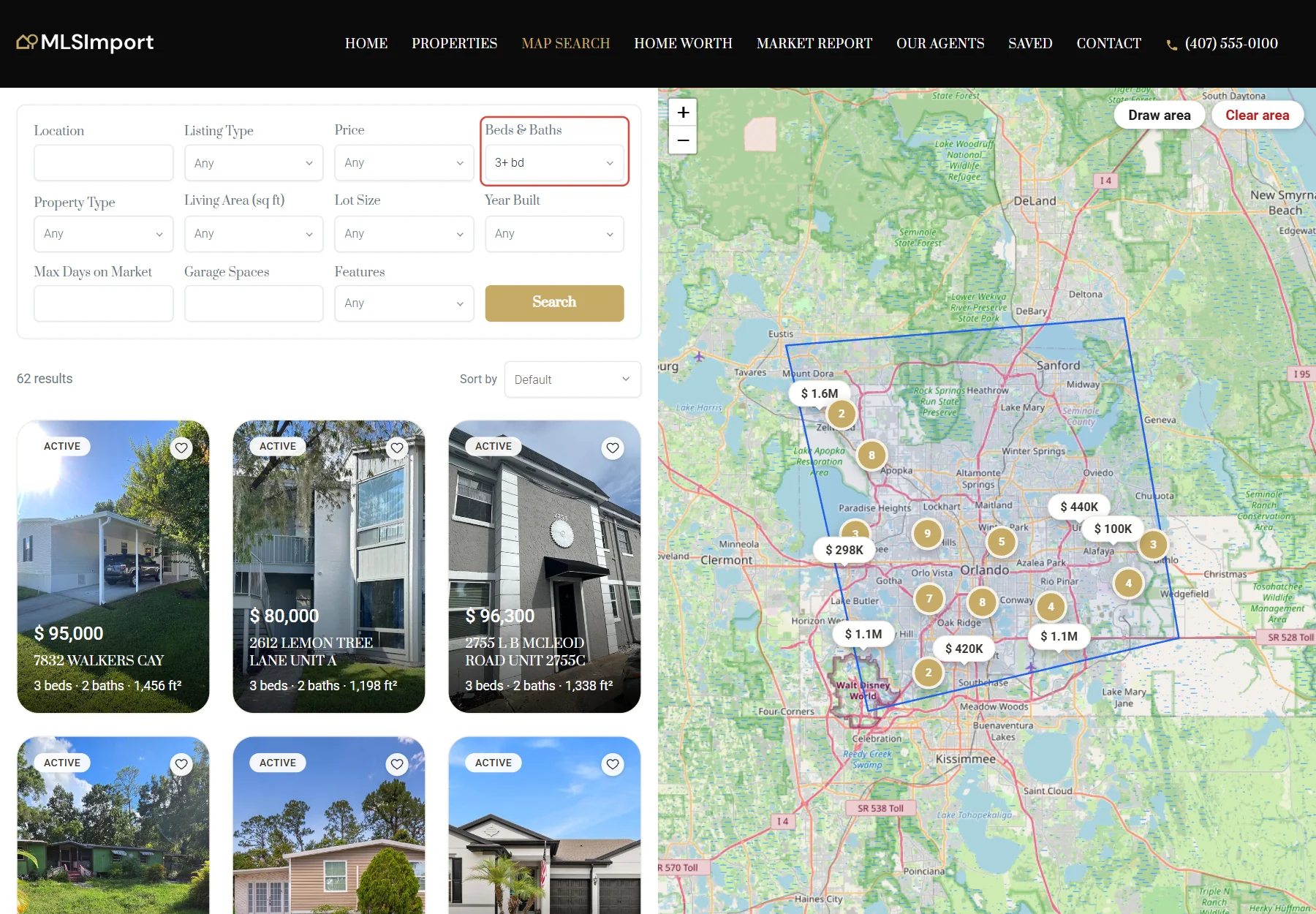
Clear the area
Clear area shows next to Draw area once a shape is on the map. It removes the shape and runs the search again. The other filters stay set, so you can draw a new area with the same price and bedroom choices.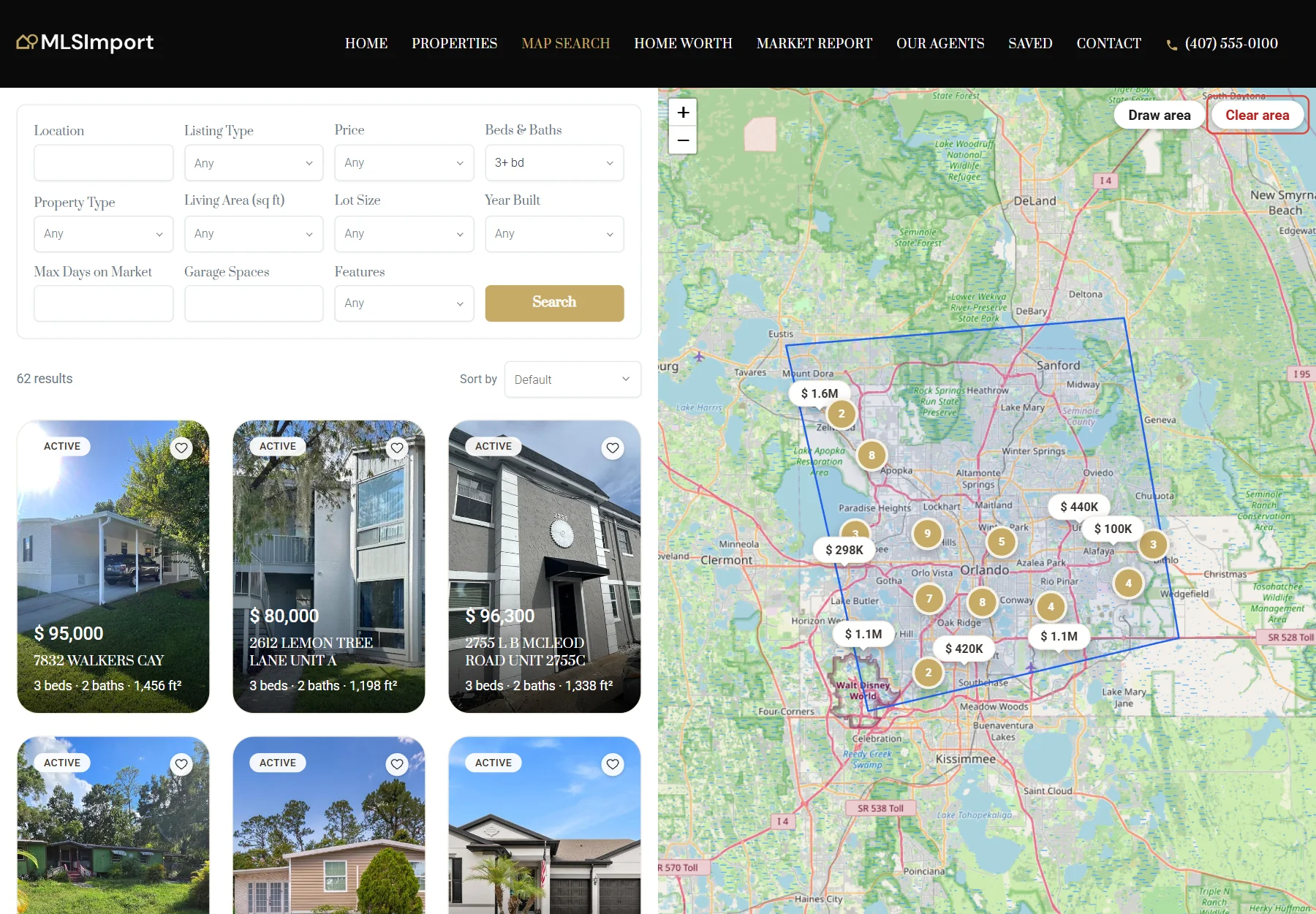
Set the Search Form block’s Results page URL to your Half Map page. Every search from your home page then opens on the map, with Draw area one click away.