
Mark a listing as Featured, and it shows at the top of every listing list on your site, with a Featured label on its card. You can mark one listing at a time or many at once. The hourly update keeps the mark.
Mark one listing
Go to MLS Properties and open the listing. In the MLS Listing box, open the Other Details tab, tick Featured listing, then press Save.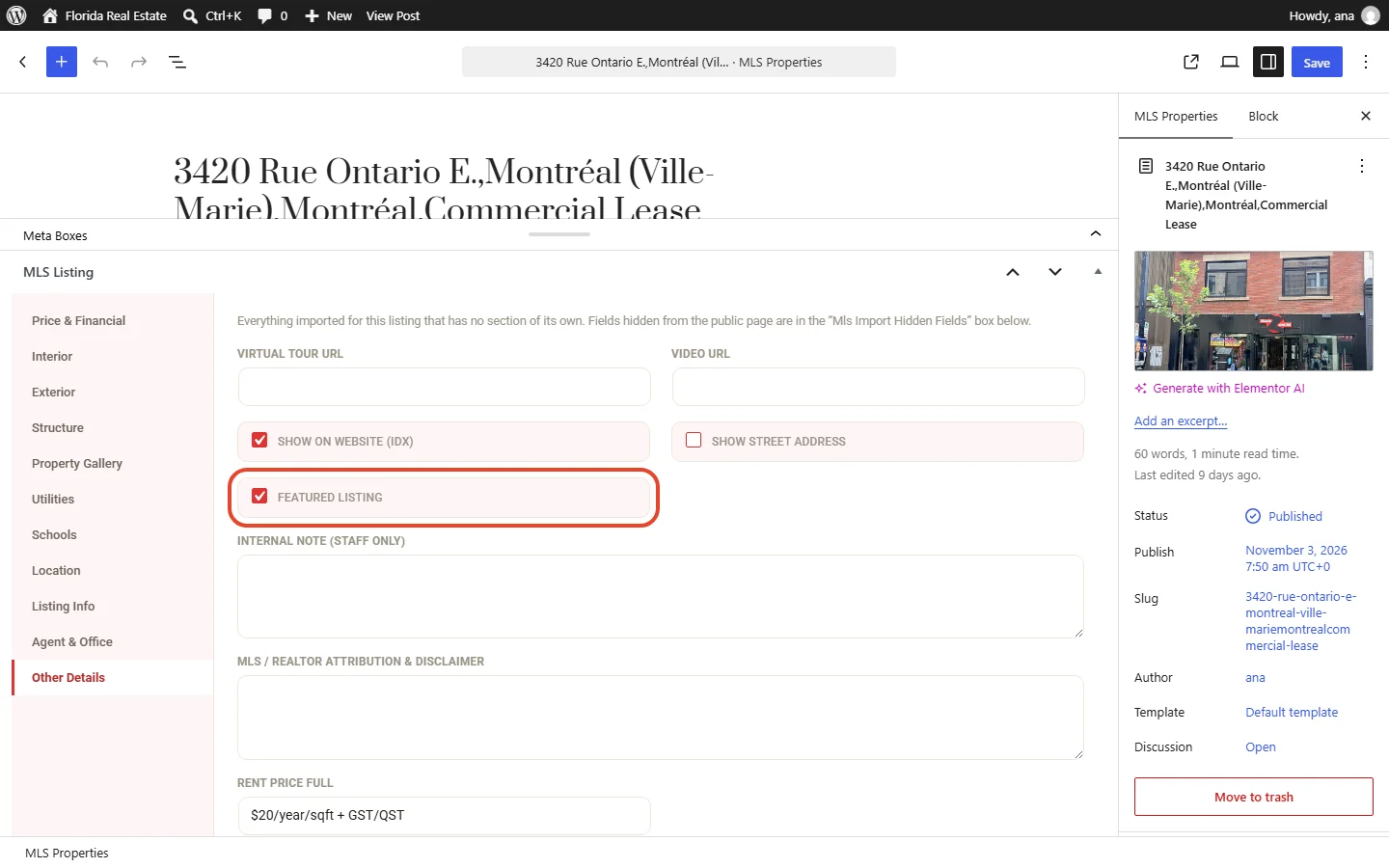
Mark several listings at once
Go to MLS Properties and tick the listings. In Bulk actions, pick Mark featured, then press Apply. Remove featured takes the mark off the same way.
The Featured column shows which listings are featured. Click its title to list the featured ones first.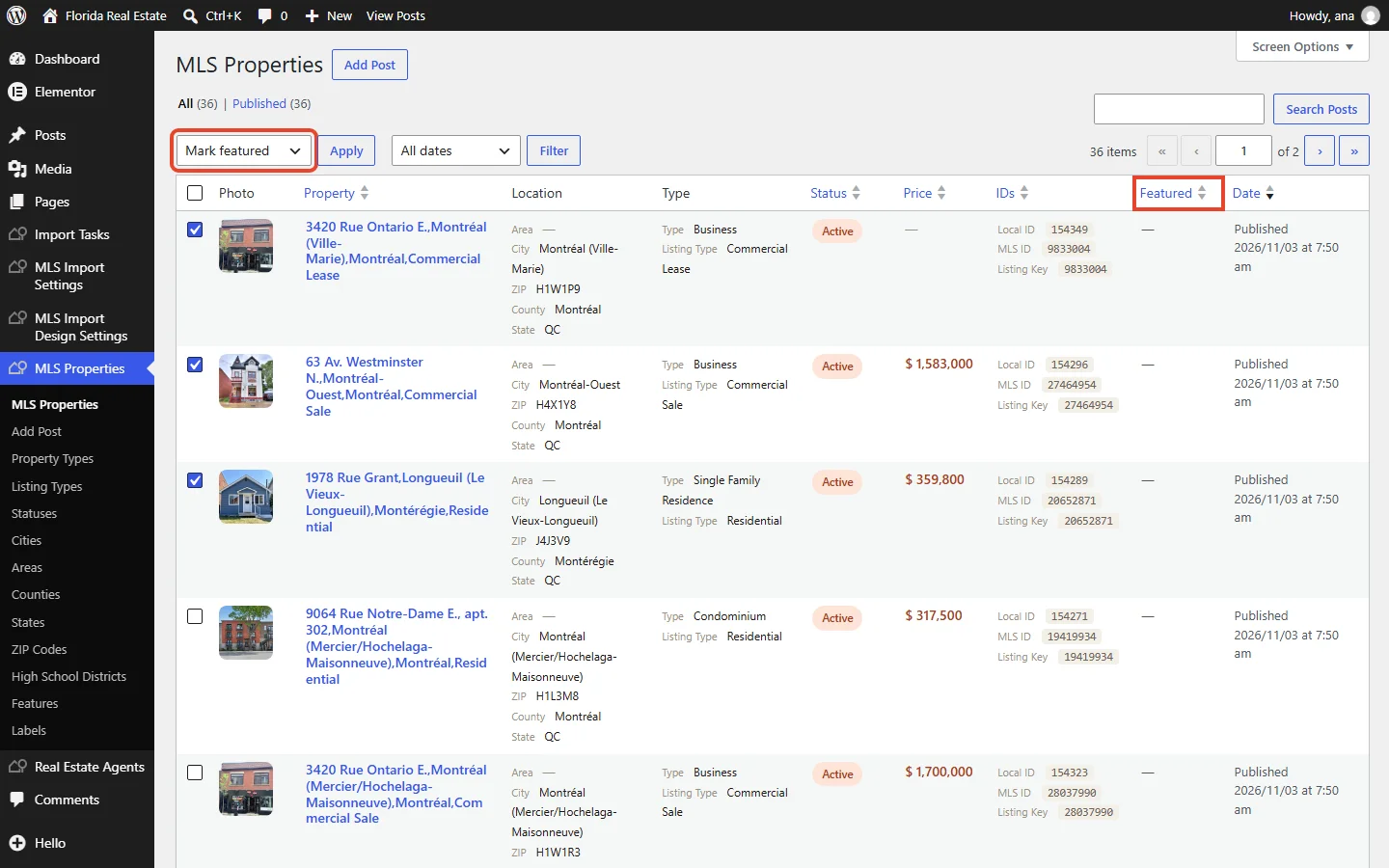
Show featured listings first
Go to MLS Import Design Settings, General, and set Show featured listings first to Yes. Yes is the default.
Featured listings then show at the top of every list, in the order set in Order by. When a visitor picks a sort, for example price, that sort wins.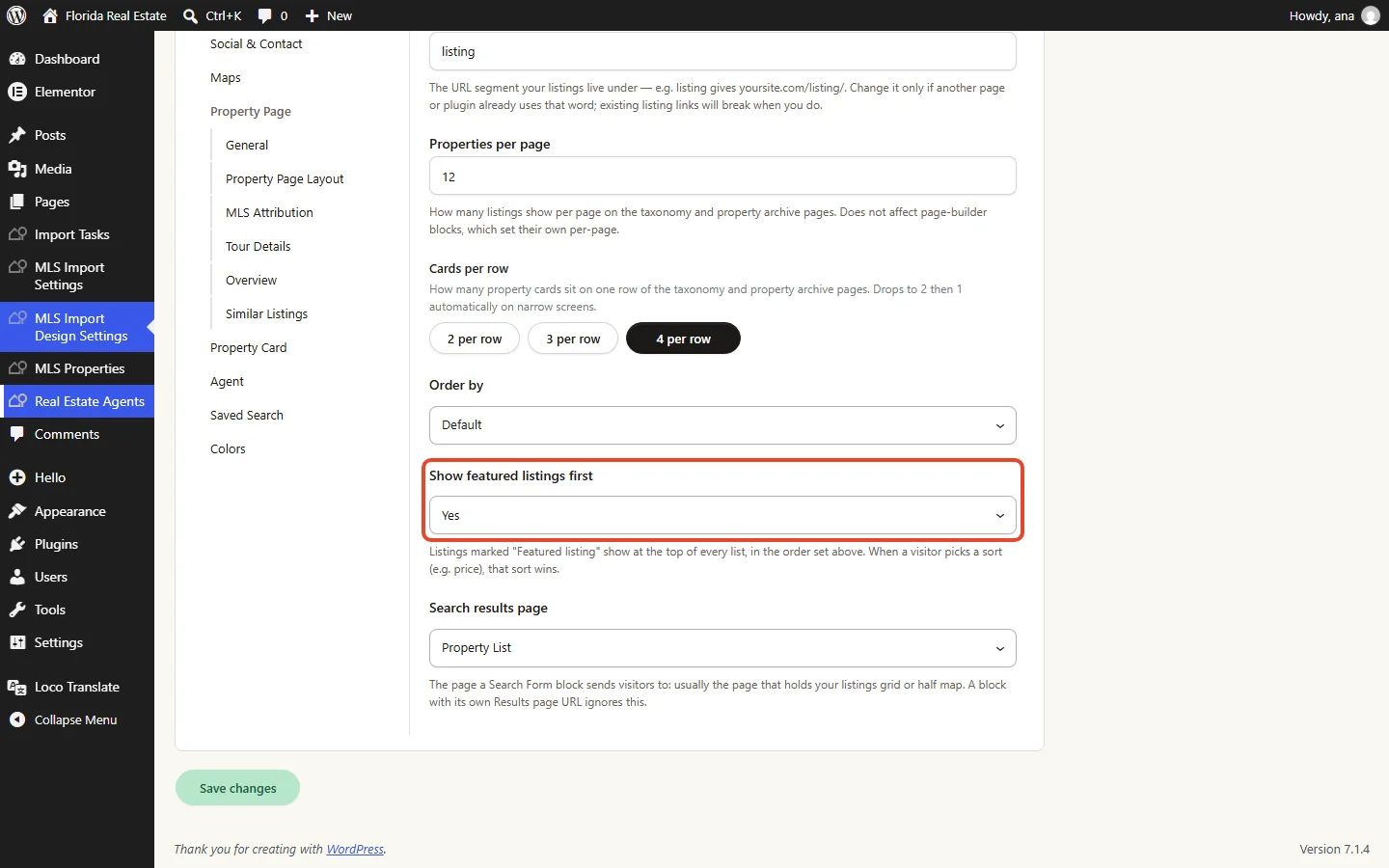
What visitors see
Featured listings come first in the results, and each card shows a Featured label.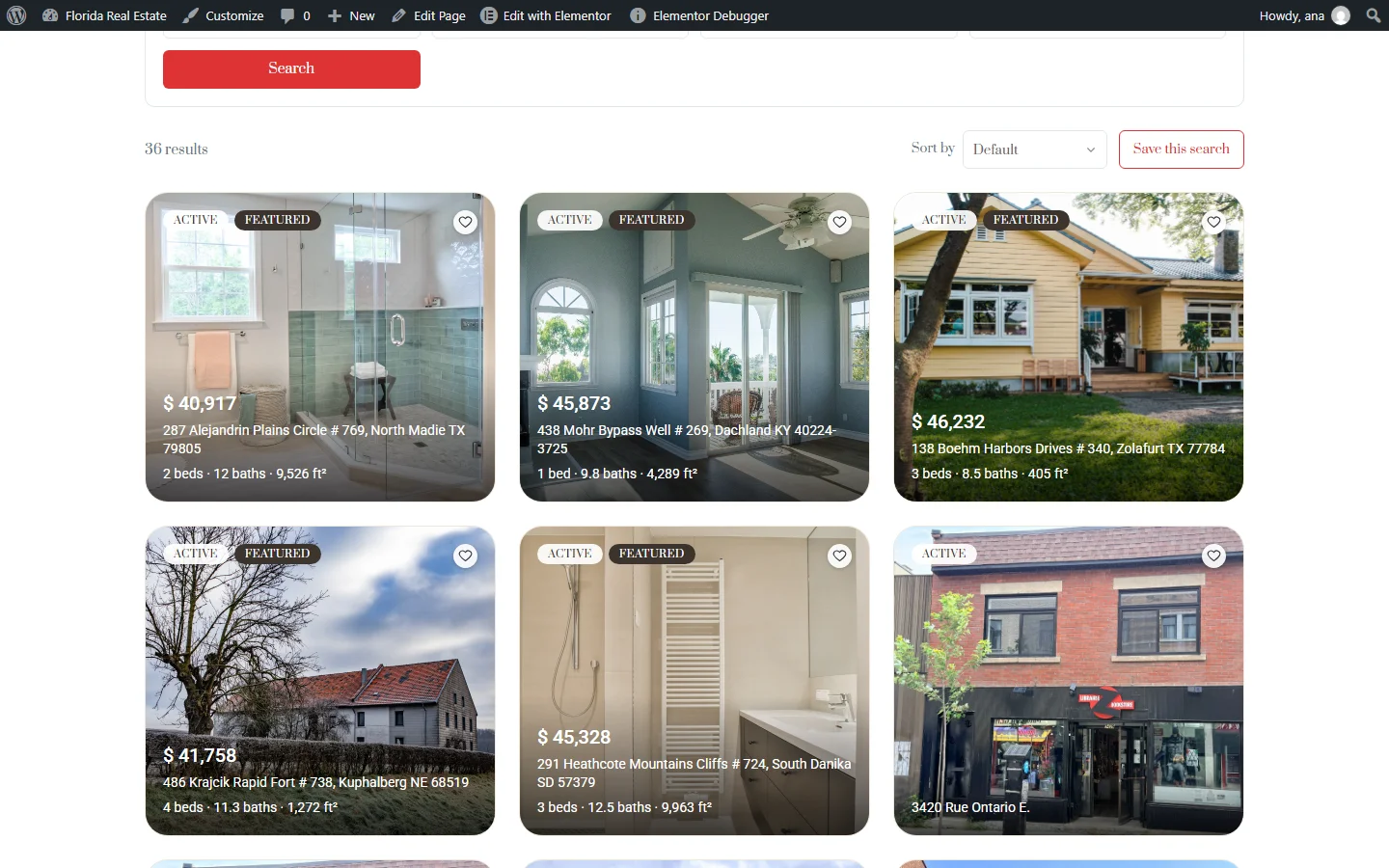
Import your office’s listings with their own import task, as in Import listings by agent or office, then mark them with Mark featured. Buyers see your office’s listings first on every list on your site.