
MLSImport imports listings, not agents. No agent profile is created from an MLS feed on any theme, and none is created in standalone mode. You create the profiles yourself, then point each import task at one.
The feed’s own agent details still arrive with the listing. Name, agent MLS ID, office and phone are imported as fields on the property, which is what MLS attribution rules require, but a field on a property is not a profile with a page of its own.
Before you start
- Your MLS connection is working and at least one import task exists.
- You know which theme mode you are in, since the agent post type differs by theme.
Create the agent profile first
The Select Agent dropdown on an import task lists published posts from your theme’s own agent post types. If nothing is published yet, the dropdown is empty.
- WpResidence reads agents, agencies and developers, so all three appear in the list.
- Houzez reads agents and agencies.
- Real Homes reads agents and agencies.
- WpEstate reads its agents.
- Standalone mode reads Real Estate Agents, the agent post type the plugin registers when no supported theme is active.
Create and publish the profile in your theme the way you normally would, with the photo, phone, email and bio you want visitors to see. MLSImport never edits those profiles, so nothing you write there is overwritten by a sync.
Assign the agent on the import task
- Go to MLS Import and open Import Tasks.
- Edit the task, or create one.
- Pick the agent in Select Agent.
- Save the task and run the import.
Expected result: every property this task creates is attached to that agent, and the property page shows that agent’s contact box instead of a blank one.
The dropdown loads 150 published agents. On a site with a larger roster the agent you want can fall outside that list, and the fix is to reduce the number of published agent posts rather than to look for a setting. This is one more reason to keep the roster to people who actually receive enquiries.
The assignment is applied when the property is created
On WpResidence, Houzez and Real Homes the agent is written at the moment a property is inserted. Changing Select Agent later applies to listings that arrive after the change, and existing properties keep the agent they were created with.
To move properties that already exist, edit them. Select them in the properties list, choose Edit from the bulk actions, and set the agent for the whole selection in one pass. The alternative is deleting them and importing again with the corrected task, which takes longer and loses nothing.
Standalone mode behaves differently on purpose. The agent link is written on every import run, so changing the task’s agent moves that task’s properties at the next sync with no bulk edit and no re-import.
Standalone: show each listing’s own agent instead
Under the agent dropdown, standalone mode adds Which agent shows on these properties.
Leave it off and every property from the task shows the agent you picked. Tick Show each property’s own listing agent from the MLS feed and each property shows the name, office and agent MLS ID that came with that listing instead, while the agent picked above is ignored.
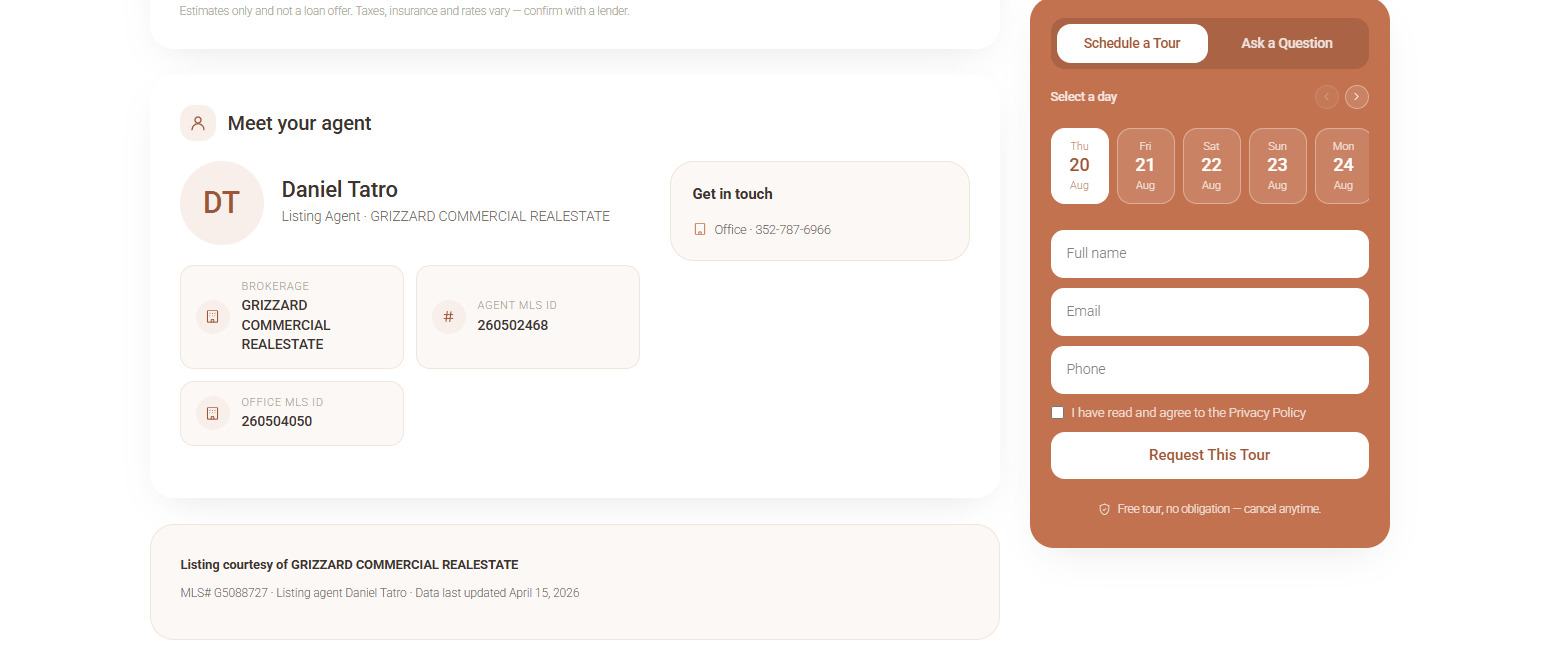
Feed mode does not publish the listing agent’s personal email and phone. Those channels are replaced by Company phone and Email from the Social & Contact tab of MLS Import Design Settings, which keeps enquiries coming to you and keeps the display inside MLS rules. No agent profiles are created in either mode.
WpEstate does not apply the dropdown
On WpEstate the Select Agent choice is not written to imported properties. They arrive with no agent attached, so set the agent yourself with a bulk edit after each import. Everything else about WpEstate agents works normally.
Showing a single agent’s listings
Two things have to line up: the listings have to be imported, and they have to be attached to that agent.
- Build one import task per agent, filtered on that agent’s identifier from the MLS. The identifiers and how to find them are covered in the article on importing by agent or office.
- Set Select Agent on that task to the matching profile.
- Use your theme’s agent page, which lists the properties attached to that agent automatically. In standalone mode the agent’s own page carries a Listings section that does the same.
When an agent page shows fewer listings than the agent expects, the missing ones are almost always owned by an older, broader task that imported them first. A listing exists once on the site, and the task that created it decided the agent. Check that before re-checking the filter.
If it does not work
- The contact box on a property is empty. No agent was picked on the task that created it, or the theme’s agent profile has no phone and email filled in.
- The right agent shows on new listings and the wrong one on old listings. Expected on WpResidence, Houzez and Real Homes. Bulk edit the old ones.
- The agent page is empty although the import found listings. The listings went in without an agent, or they belong to another task. Open one property and read which agent is set on it.
Frequently asked questions
Can MLSImport read the MLS member feed and build profiles from it?
No. The connection is to the property feed. Even where an MLS publishes a member feed, MLSImport does not read it and does not create agent posts from it.
Can two agents share one property?
One agent is attached per property. A co-listing agent’s details can be imported as fields and displayed on the listing, but the assignment that drives the contact box and the agent page holds a single agent.
Will the sync overwrite the agent photo or bio I entered?
No. Sync writes listing data to properties. Agent posts are never touched by an import or by reconciliation.
Do agent enquiries go to the agent or to me?
That depends on the theme’s own contact form, which routes to the agent attached to the property. In standalone mode a listing showing the feed’s agent routes to the company email in your settings instead of to the MLS agent.
Related
- Importing one agent’s or one office’s listings
- Office page and agent pages without duplicate listings
- Agent profiles in standalone mode
- MLSImport with WpEstate
- Houzez: filtering listings by agent
Tell us which theme you use and how many agents you have and we will lay out the task structure with you.
